Level 2 · Builder
The AI suggested a package that didn't exist. Then someone made it
- Supply chain attacks
- Typosquatting
- Hallucinated packages
- Slopsquatting
- Install scripts
- npm audit
- Checking a package
The AI suggested a package that didn’t exist. Then someone made it
Before you start This lesson uses words from earlier lessons:
- Package and npm: a package is code that another person shared. The npm tool downloads packages from the npm registry. (It works on my machine, but not on yours. Blame the packages)
- Lockfile:
package-lock.json. It records the exact version of every installed package. (It works on my machine, but not on yours. Blame the packages)- Environment variables: settings and secrets that you keep outside your code, often in a
.envfile. (Your app’s secrets don’t belong in your code. Here’s where they go)- Leaked secret: a key or password that someone else can now use. You must replace it. (Your API key leaked, and strangers are spending your money)
A name that sounded right
You ask your AI to add a feature that turns uploaded spreadsheets into charts. It writes the code and gives you a command: npm install, then a package name. The name sounds exactly right. It mentions spreadsheets and charts.
You run the command, and the package installs. But the AI’s code does not work, because the package does not have the functions that the AI used. You ask the AI to fix it, and it changes to a different package. Everything works. You forget about the first package.
Here is what you did not see. Until a few weeks ago, that first package did not exist. The AI invented the name. Someone saw that AI tools keep inventing that same name. They registered it on npm and added a script that runs when anyone installs the package. The script read your .env file and sent your API keys to a server somewhere else.
Your app works. You did not import the package (use it in your code). You cannot see anything wrong. And your keys are gone.
This lesson is about the code that you install without reading it. It shows how to stop the dangerous kind.
The mental model: installing is running a stranger’s code
When you run npm install, you do not download a picture or a document. You add a stranger’s code to your project. That code can run with the same permissions as you. It can read your files, your .env file and anything else on your computer. On a server, it can read your production secrets (the keys of the live app that real users use).
Most package authors are honest, and most packages are safe. But you trust many people at the same time. Every package that you install brings its own dependencies (other packages that it needs). You trust all of their authors too.
Think of a restaurant. The cook is careful, and the kitchen is clean. But the food comes from many suppliers, and those suppliers have their own suppliers. If one of them sends something bad, the meal is bad. The cook’s care does not change that. All the people and steps that bring food to the kitchen are the supply chain.
Software has a supply chain too. It includes the packages that you install, their dependencies, the npm registry and the people who publish the packages. A supply chain attack reaches your app through something that you use. It does not attack your app directly.
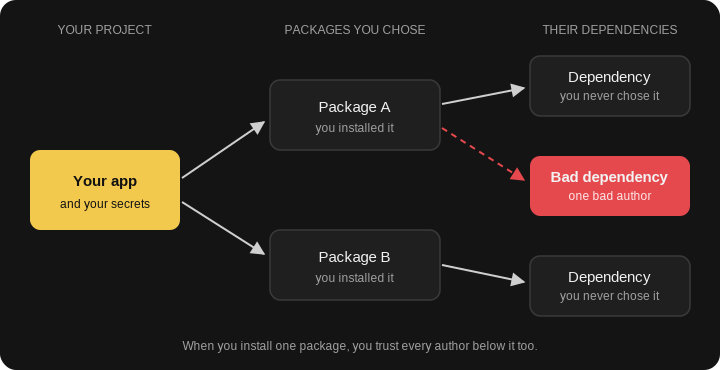
Where the restaurant comparison stops working: food inspectors check suppliers. Nobody checks every npm package before you install it. Anyone can publish a package, under almost any free name, in minutes.
Four ways a bad package gets in
1. Typosquatting: a name one typo away
Attackers publish packages with names that are very close to popular ones. They hope that someone types the name wrong. This is typosquatting.
Here is a real case. In 2017, a package called crossenv appeared on npm. The popular, real package is cross-env, with a dash. The fake one sent the environment variables of each person who installed it to the attacker’s server. The npm team looked further and removed about 40 packages in total. The team told everyone who installed them to “immediately revoke and replace” their credentials (keys and passwords).
2. Slopsquatting: names the AI invents
AI tools sometimes hallucinate packages. They suggest, with confidence, a package name that does not exist. The name sounds right, because the AI builds it from words that often appear together.
Researchers measured how often this happens. They presented a study at USENIX Security 2025, a major computer security conference. The study made 576,000 code samples with 16 AI models, in Python and JavaScript. Here are the results:
- Commercial models: on average, at least 5.2% of the suggested packages did not exist.
- Open-source models (models whose files anyone can download and run): the number was 21.7%.
- All tests together: the models invented 205,474 different fake package names.
This matters for security. An AI can invent the same name again and again. An attacker can find that name, publish a real package with it and wait. The next person whose AI suggests it installs the attacker’s code.
This attack is slopsquatting. The name comes from “slop” (careless AI output) and “typosquatting”. Seth Larson gave it this name. He is the security developer-in-residence at the Python Software Foundation.
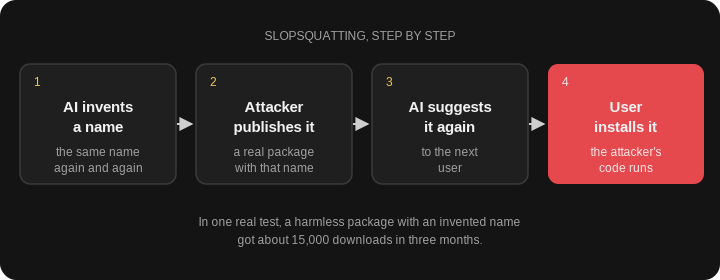
This is not only a theory. In 2024, a researcher at Lasso Security saw that AI tools kept suggesting a Python package called huggingface-cli. That package did not exist. (You install the real tool in a different way.) As an experiment, he published an empty, harmless package with that name. In three months, people downloaded it about 15,000 times. It even appeared in the install instructions of a project from a large company.
3. Hijacked real packages
Sometimes the package is real, popular and trusted. But someone else takes control of it. A package’s maintainer is the person who looks after it and publishes new versions.
- In 2018, an attacker talked their way into the maintainer role of
event-stream, a widely used package. The new maintainer added a dependency with hidden code. The code targeted one bitcoin wallet app and tried to steal its users’ coins. - In September 2025, the maintainer of
chalk,debugand other very popular packages got a phishing email. Phishing is a fake message that tricks a person into giving away their login. The email said it was from npm support. It came from a look-alike address,support@npmjs.help.
The attacker took over the maintainer’s account. They published new versions with code that tried to steal cryptocurrency in the browser. The bad versions were live for about two hours before people started to remove them. npm removed them the same day. But these packages are some of the most downloaded on npm, so even a few hours mattered.
Your lockfile protects you here. A project with a lockfile keeps installing the exact versions that it recorded. A project without one gets the newest version, and so does a fresh npm install of a new package. That newest version can be a hijacked one.
Go deeper: It works on my machine, but not on yours. Blame the packages (Level 1) explains how lockfiles pin exact versions.
4. Install scripts: code that runs during install
The story at the start of this lesson worked, but you never imported the package. How?
A package’s package.json can list install scripts. These are commands that npm runs automatically while it installs the package. They have names like preinstall, install and postinstall:
{
  "name": "some-package",
  "version": "1.0.0",
  "scripts": {
    "postinstall": "node setup.js"
  }
}
In plain English: after npm installs this package, it runs node setup.js, a file inside the package. That file can do anything that your user account can do.
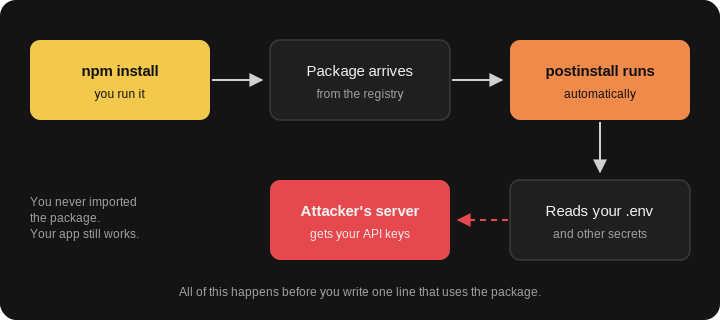
Install scripts have honest uses. Some packages must build parts of themselves for your computer. The npm docs say that compiling (turning code into a program for your machine) is the only valid reason for install or preinstall scripts. But install scripts are also the attacker’s favourite tool. The code runs before you write one line that uses the package.
In September 2025, a self-spreading attack used exactly this. Its nickname is Shai-Hulud. Infected package versions used a postinstall script to search the computer for secrets, such as GitHub tokens and cloud API keys.
Then the attack used the developer’s own npm access. It published infected versions of other packages that the developer maintained. CISA, the US cybersecurity agency, published an alert about it. The alert said that the attack compromised more than 500 packages.
How it goes wrong with AI
AI tools make each of these risks a little worse:
- They suggest packages with confidence. In the chat, a made-up name looks exactly like a real one.
- They suggest packages for small jobs. A few lines of code, or a built-in feature, can often do these jobs.
- AI agents can install packages themselves. An AI agent is an AI tool that runs commands for you. Some coding tools run
npm installand do not ask first. Set your tool to ask before it installs anything. - “Fix it” leaves things behind. When a package does not work, the AI often changes to another one. But the first package stays in
package.json, and its install script already ran.
What good looks like
Habit 1: Check a package before you install it
Before you install a package that you do not know, look it up. You can do this in the terminal (the text window where you type commands):
npm view some-package-nameThis command shows the package’s description, latest version and number of versions. It also shows who maintains it and when it was last published.
If npm replies with a 404 Not Found error, the package does not exist. The AI made it up. Do not install anything with a similar name. Ask the AI for a well-known alternative, and check that one too.
Then open the package’s page at npmjs.com/package/ followed by its name. Look for these warning signs:
| Check | Safer sign | Warning sign |
|---|---|---|
| Name | Exactly the name in the official docs | One letter different from a famous package |
| Age and history | Published years ago, many versions | Created days or weeks ago, one or two versions |
| Weekly downloads | Thousands or more (for a common job) | Very few, for a job that many apps need |
| Repository link (link to the source code) | Real source code with recent activity | No link, or a link to an empty or unrelated project |
| Install scripts | None, or clearly explained (for example, it builds code for your computer) | A postinstall script in a package that has no reason to need one |
No single check proves that a package is safe. Attackers hijack popular packages too. But stop completely if you see a brand-new package with a name that your AI invented and a postinstall script.
Before all of this, ask the simplest question: do I need a package at all? Each package that you skip is one less stranger in your supply chain.
Habit 2: Read what npm audit tells you
When you run npm install, npm also checks your packages against a database of reported security problems. It shows a summary, like “found 0 vulnerabilities”. (A vulnerability is a known security weakness.) To see the full report, run:
npm auditThe report lists packages with known problems and how serious each problem is. It also shows if an update fixes the problem. npm audit fix applies the updates that stay inside the versions that your package.json allows.
Two warnings:
- Read before you run
npm audit fix --force. It can install major versions that break your app. A major version is a big update that can change how a package works. The npm docs say: do not use this option if you do not have a clear idea of what you want to do. - “0 vulnerabilities” does not mean “safe”.
npm auditknows only about problems that someone already found and reported. A brand-new harmful package is not in the database yet. A version hijacked one hour ago is not in it either.
Go deeper: Stop broken code before it ever goes live (Level 3) shows how to run checks like this automatically.
Habit 3: Control install scripts
You can tell npm not to run any install scripts:
npm install --ignore-scriptsTo make this the default for a project, add the line ignore-scripts=true to a file called .npmrc in your project folder. .npmrc is npm’s settings file. After the Shai-Hulud attack, the CERT Coordination Center recommended --ignore-scripts “where feasible”. It is a US security research center.
There is a trade-off. A few packages need their install scripts to work. If something breaks, you will see it. Then you can decide to let that one package run its script. Some newer package managers (tools like npm) already work this way. Since version 10, pnpm does not run the install scripts of dependencies unless you allow them.
Habit 4: Keep your lockfile, and keep secrets small
- Commit
package-lock.json(save it in Git with your code) and install from it. Then nobody gets a surprise new version. - Do not keep secrets on your laptop that you do not need there. Use test keys for development, not production keys.
- If a package that you installed is harmful, remove it. Then treat every secret on that computer or server as leaked. Create new keys and turn off the old ones.
Go deeper: Your API key leaked, and strangers are spending your money (Level 2) explains how to replace a leaked key correctly.
Test your own app
You need an app of your own for this part. No app yet? Start with Your first app in an afternoon, with an AI doing the typing. Built it in an AI app builder? Ask its AI to do each step below for you, or to add the missing part first (for example, a login).
- Run
npm auditin your project folder. Read the result. For each problem, ask your AI if it affects your app. Ask how to fix it without--force. - Check every package in your
package.json. For each name underdependencies, open its npmjs.com page. Is it the package that you think it is? Do you still use it? If not, remove it withnpm uninstall <name>. - Find install scripts. Run this command. It lists installed packages that have a
postinstallscript:
npm query ":attr(scripts, [postinstall])"For each package in the list, ask: do I know why this package must run code during install?
- Check your AI tool’s settings. Can it run
npm installwithout asking you? If yes, change that.
Takeaways
Key terms
- Supply chain attack: an attack that reaches your app through something that you use, like a package.
- Typosquatting: a harmful package with a name close to a popular one.
- Hallucinated package: a package name that an AI invented. The package does not exist.
- Slopsquatting: an attacker publishes a harmful package under a name that AI tools often invent.
- Install script: a command in a package’s
package.jsonthat npm runs automatically during install. - npm audit: a command that checks your packages against reported security problems.
Red flags
- The AI suggests a package that you cannot find in any official documentation.
npm viewreturns 404, or someone created the package very recently.- A name is one letter or one dash away from a famous package.
- A package has a
postinstallscript but no reason to build anything. - Nobody can explain some packages in
package.json. - Someone fixes
npm auditwarnings with--forceand does not read what changes.
Ask your AI
- “Before we add a package, tell me if we can do this without one. If we need one, give me the exact name and the link to its official documentation.”
- “List every package in my package.json, what it’s for, and whether my code still uses it.”
- “Explain each problem npm audit reports in my project, and how to fix it without breaking changes.”
Going deeper (optional, for readers who want more detail)
Wait before you upgrade. People find many attacks within hours or days. Recent versions of npm have a min-release-age setting. With it, npm installs only versions that have been public for a number of days. pnpm and tools like Renovate have similar settings. If you wait a few days before you take new versions, you avoid most newly hijacked releases.
Check the registry’s signatures. npm audit signatures checks that the packages you downloaded have valid signatures from the registry. Where available, it also checks their provenance attestations. Provenance is a signed record of which source code repository and build system made a package. It lets you see that someone built the package from the code that you can read.
Other ecosystems. Everything in this lesson also applies to Python (PyPI and pip), Ruby gems, Rust crates and others. The huggingface-cli experiment was on PyPI. The USENIX study tested both Python and JavaScript.
Dependency confusion. This is a related attack. Your company can use private packages. An attacker then publishes a public package with the same name and a higher version number. The attacker hopes that your tools pick the public one. Scoped package names (like @yourcompany/utils) and registry settings prevent it.
Tools. Services such as Socket, Snyk and GitHub’s Dependabot watch your dependencies. They warn about known problems or suspicious new versions. They help, but you must still know why each package is in your project.
References (14)
- We Have a Package for You! A Comprehensive Analysis of Package Hallucinations by Code Generating LLMs: Spracklen et al., USENIX Security 2025. 576,000 code samples, 16 models, hallucination rates of at least 5.2% (commercial) and 21.7% (open-source), and 205,474 invented package names.
- LLMs can’t stop making up software dependencies and AI hallucinates software packages and devs download them: The Register. Seth Larson naming “slopsquatting”, and Lasso Security’s
huggingface-cliexperiment (more than 15,000 downloads in three months, used in a large company’s install instructions). - crossenv malware on the npm registry and Details about the event-stream incident: npm Blog. The 2017
crossenvtyposquat, about 40 removed packages in total and the “immediately revoke and replace” advice; the 2018event-streamtakeover that targeted one bitcoin wallet app. - Dev snared in crypto phishing net, 18 npm packages compromised: The Register. The fake email from
support@npmjs.helpand the roughly two hours before the bad versions started being removed. - Malware in chalk and debug@4.4.2 contains malware after npm account takeover: GitHub Advisory Database. The September 2025 phishing takeover, the browser code that tampered with cryptocurrency transactions, and npm removing the versions on the same day.
- Widespread Supply Chain Compromise Impacting npm Ecosystem: CISA, 23 September 2025. Shai-Hulud, a self-replicating worm that stole GitHub tokens and cloud keys and compromised more than 500 packages.
- VU#534320: NPM supply chain compromise exposes challenges to securing the ecosystem: CERT/CC. Shai-Hulud’s use of a
postinstallscript, and the advice to usenpm install --ignore-scripts“where feasible”. - scripts, npm audit and config: npm Docs. Install scripts and their only valid use,
audit fixand the--forcewarning,audit signaturesand provenance, and theignore-scriptsandmin-release-agesettings. - pnpm v10.0.0 release notes: pnpm. Dependencies’ install scripts don’t run by default unless you allow them.