Level 3 · Shipping
Stop broken code before it ever goes live
- Continuous integration
- Continuous deployment
- Pipelines
- GitHub Actions
- Linting
- Type checking
- Required status checks
Stop broken code before it ever goes live
Before you start This lesson uses a few words from earlier lessons:
- Pull request and merge: a request to bring a branch’s commits into
main, and the action that does it. (From your laptop to a real website in one push)- Lockfile:
package-lock.json, which records the exact version of every installed package. (It works on my machine, but not on yours. Blame the packages)- Automated tests: small programs that check that your code still gives the right results. (The AI fixed one bug and quietly broke three others)
- Regression: something that used to work and broke after a change. (The AI fixed one bug and quietly broke three others)
The tests that never ran
In the last lesson, you wrote tests for checkout. They pass. You feel safe.
On Friday evening, a user reports a small typo on the pricing page. You ask the AI to fix it. It fixes the typo. It also “tidies up” a helper function nearby (a small function that other code uses). You push directly to main, because it is only a typo. Your hosting platform builds and deploys the change in about a minute.
You didn’t run the tests. It was late, and it was only a typo.
But checkout used that helper function. Checkout stays broken until Monday. Your tests would have found the problem in four seconds. But they never ran.
Tests protect you only if they run every time. That includes the times when you are tired, in a hurry, or sure that everything is fine. People forget. So give the job to a computer, and then make its answer count. At the end of this lesson, code that fails your checks can’t reach your live site at all.
CI: a fresh computer checks every push
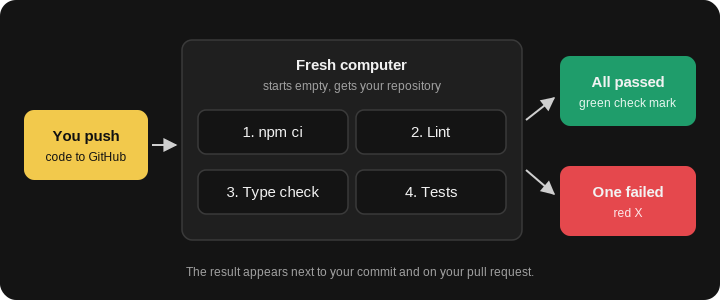
Continuous integration, or CI, works like this. Every time you push code, a computer automatically downloads it and runs your checks. The checks are your tests and a few other checks that you will meet below. The result appears next to your commit and on your pull request:
- a green check mark: all checks passed
- a red X: something failed
The list of steps that runs on every push is a pipeline.
Think of airport security. Every bag goes through the scanner. There is no “I’m in a hurry” lane. The scanner doesn’t care if the bag belongs to a pilot.
Where the comparison stops working: an airport scanner looks for many kinds of danger. CI runs only the checks that you gave it. If you have no test for checkout, CI shows green while checkout is broken.
Why a fresh computer is important
Each CI run starts on a clean computer with nothing installed. It gets only what is in your repository. So it finds many “works on my laptop” problems:
- A file that you created but never committed
- A package that you installed but that isn’t in
package.json - Code that needs something that only your laptop has, like a file in your Downloads folder
- Tests that pass only because of old data on your laptop
If the code passes on a fresh computer, you know that it doesn’t work on yours only by luck.
CD: automatic release
The CD in CI/CD stands for one of two related ideas:
- Continuous delivery: every change that passes the checks is ready to release, and a person presses the button.
- Continuous deployment: every change that passes the checks goes live automatically.
You already have continuous deployment. Your hosting platform deploys every push to main. But there is a problem. By default, it doesn’t wait for your checks. It deploys whatever reaches main, if your tests passed or not.
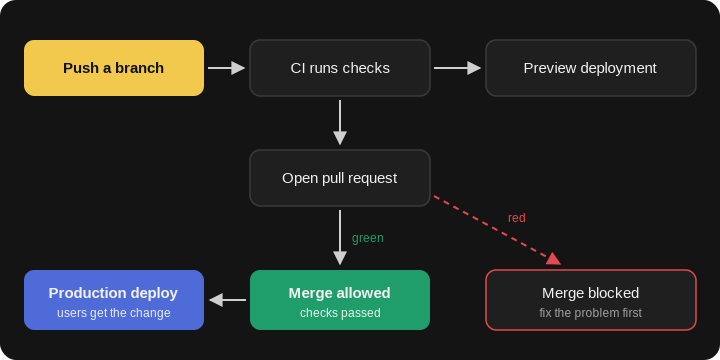
So this is the real goal of this lesson: only code that passed the checks can reach main. Then automatic deployment becomes safe.
The four checks worth running
1. Install exactly what the lockfile says
CI installs packages with npm ci instead of npm install. The npm docs list the differences:
npm cineeds a lockfile.- It installs exactly the versions in the lockfile.
- It stops with an error if
package.jsonand the lockfile don’t match. - It never changes either file.
That is what you want in a check: the same packages every time, or a clear failure.
2. Lint: find risky code without running it
A linter reads your code and marks mistakes and risky patterns, without running the code. The most common linter for JavaScript is ESLint. For example, ESLint’s recommended rules mark this:
if (user.role = "admin") {
  showAdminPanel();
}
A single = sets a value. A comparison needs ===. This code makes every user an admin, then shows them the admin panel. A person or an AI can easily make this mistake, and the linter finds it in milliseconds.
3. Type check: find values of the wrong kind
TypeScript is JavaScript with labels called types. A type says what kind of value each thing must hold: a number, some text, a list of users. The TypeScript checker reads the labels and finds values that don’t match:
function addTax(priceInCents: number) {
  return Math.round(priceInCents * 1.2);
}

addTax("2000");
The label number says that addTax needs a number. Line 5 gives it the text "2000". TypeScript reports an error like “Argument of type ‘string’ is not assignable to parameter of type ‘number’”. It does this before the code runs.
Without the check, JavaScript would silently turn the text into a number in this case. In other cases, it would give a strange result.
The command tsc --noEmit runs the checker. --noEmit means “check only, don’t produce any files”.
4. Run the tests
This is one run of your Vitest tests from the last lesson.
Put them in package.json
Give each check a short name in package.json. Then you can run the same commands on your laptop and in CI:
"scripts": {
  "lint": "eslint .",
  "typecheck": "tsc --noEmit",
  "test": "vitest run"
}
Now npm run lint, npm run typecheck and npm test work everywhere. Many projects also check that the app builds (npm run build). Then a broken build fails in CI before it reaches the hosting platform.
GitHub Actions: CI that comes with GitHub
GitHub Actions is GitHub’s built-in CI service. You describe your pipeline in a file in your repository, and GitHub runs it on its own computers.
The file goes in a folder called .github/workflows/, for example .github/workflows/ci.yml. It uses YAML, a format for settings. YAML uses indentation (spaces at the start of a line) to show what belongs to what. The spaces are important: one wrong indent changes the meaning of the file.
on: [push, pull_request]
jobs:
  checks:
    runs-on: ubuntu-latest
    steps:
      - uses: actions/checkout@v6
      - uses: actions/setup-node@v7
        with: { node-version: "lts/*", cache: npm }
      - run: npm ci
      - run: npm run lint
      - run: npm run typecheck
      - run: npm test
In plain English:
- Line 1: run this workflow (GitHub’s name for a pipeline file) on every push and every pull request.
- Lines 2–4: the workflow has one job called
checks. A job runs on a fresh computer, called a runner.ubuntu-latestasks for a recent Linux computer. - Line 5: the steps of the job. They run in order from top to bottom.
- Line 6: download your repository’s code onto the runner.
actions/checkoutis a ready-made step that GitHub wrote.@v6chooses its major version. - Lines 7–8: install Node.js.
lts/*means “the newest long-term support version”: a version that gets fixes for a long time.cache: npmsaves downloaded packages between runs, so later runs are faster. It uses your lockfile to see when your packages changed. - Lines 9–12: install packages exactly as the lockfile says. Then run the linter, the type checker and the tests.
If a step fails, the job stops there, and the run gets a red X. The steps after it don’t run.
Commit this file and push it. On GitHub, open the Actions tab of your repository to watch the run. The output of each step is there, like a build log. On a pull request, the result appears near the Merge button.
What it costs. GitHub’s docs say that standard runners are free for public repositories. Private repositories get a monthly free amount, and you pay after that. Check GitHub’s billing page for current amounts.
Block merges when checks fail
A red X is only a warning. GitHub still lets you click Merge. To make it a rule, use a ruleset. A ruleset is GitHub’s newer way to protect a branch. It works together with the older branch protection rules.
- In your repository, open Settings. Find Rulesets in the sidebar.
- Create a new branch ruleset for your default branch (
main). - Turn on Require a pull request before merging. Now nobody can push directly to
main. Every change goes through a pull request. - Turn on Require status checks to pass before merging. Add the
checksjob from your workflow. - Save the ruleset. Make sure that it is active.
Now the Merge button stays blocked until the checks are green. The Friday-evening typo fix would have needed a pull request. The tests would have run, and the red X would have stopped the merge.
One limit: on a free GitHub account, rulesets work on public repositories. For private repositories, you need a paid plan such as GitHub Pro. Without one, your checks still run and still show red, but GitHub doesn’t block the merge. Then you must follow the rule yourself: never merge red.
The whole pipeline
Put the last few lessons together. Every change follows this path:
How it goes wrong
Checks that don’t block. CI runs, the result is red, and someone merges anyway. If nothing stops the merge, one day someone will merge red.
Green, but nothing checked. CI is only as good as its checks. A workflow that runs zero tests passes every time. A workflow where tests are skipped passes every time too.
The AI “fixes” CI by switching it off. When CI fails, an AI may suggest one of these:
- add
continue-on-error: trueto a step - put
|| trueafter a command - delete the step
continue-on-error tells GitHub Actions to let the job pass even when that step fails. || true makes a failed command look successful. All of these turn red into green, but they fix nothing. Treat them as warning signs.
Secrets pasted into the workflow. The workflow file is in your repository, so anyone who can read the code can read it. Put keys in Settings → Secrets and variables → Actions. Read them in the workflow as ${{ secrets.MY_KEY }}.
Go deeper: Your API key leaked, and strangers are spending your money (Level 2) explains why a key in your repository is never safe. It stays unsafe even after you delete it.
CI connected to production. Integration tests (tests that check several parts together) sign up users and delete rows. In CI, they must use a test database, never the production database.
Flaky and slow checks. A flaky test passes sometimes and fails sometimes, with no code change. If tests fail at random, people learn to click “re-run” until the result is green. Then they learn to ignore red. If CI takes 30 minutes, people find ways to avoid it. Fix or remove flaky tests, and keep the checks fast.
What good looks like
- One workflow file runs lint, type check and tests on every push and pull request
- The same
npm runcommands work on your laptop and in CI - Nobody pushes directly to
main; every change goes through a pull request - Merges are blocked until checks pass (or, on a private free repository, you never merge red)
- Secrets are in GitHub’s secrets settings, not in the workflow file
- Everyone treats a failed check as information about the code, not as an obstacle to remove
Test your own app
You need an app of your own for this part. No app yet? Start with Your first app in an afternoon, with an AI doing the typing. Built it in an AI app builder? Ask its AI to do each step below for you, or to add the missing part first (for example, a login).
- Add the three scripts to your
package.json. Run each one on your laptop first, and fix what fails. If your project doesn’t use TypeScript, leave outtypecheck. - Create
.github/workflows/ci.ymlwith the workflow above. Commit it and push. - Open the Actions tab on GitHub and watch the run. Click a step to see its output.
- Make a branch and break a test on purpose. Push the branch and open a pull request. Watch the red X appear.
- If your repository allows it, add the ruleset. Check that the Merge button is now blocked.
- Fix the test and push again. Watch the result turn green.
Takeaways
Key terms
- CI (continuous integration): a fresh computer checks every push automatically
- CD (continuous delivery / deployment): changes that pass are ready to release, or go live automatically
- Pipeline: the steps that run on every change
- Linter: a tool that marks risky code without running it, like ESLint
- Type check: a check that every value matches its declared type, with TypeScript
- GitHub Actions: GitHub’s built-in CI; workflows are in
.github/workflows/ - Workflow, job, step, runner: the pipeline file, a group of steps, one command, the computer that runs it
- Ruleset: GitHub rules for a branch, such as “require status checks to pass”
Which check failed?
npm cifailed →package.jsonand the lockfile don’t match. Runnpm installon your laptop and commit the lockfile.- Lint failed → the output names the file, the line and the rule.
- Type check failed → a value doesn’t match its type. Read the first error first.
- Tests failed → something that used to work changed. Read which test failed and what it expected.
- Works on your laptop, fails in CI → look for files you didn’t commit, missing packages or missing environment variables.
Ask your AI
- “Add lint, typecheck and test scripts to my package.json, and a GitHub Actions workflow that runs them on every push and pull request.”
- “CI failed. Here is the log: [paste]. What is the first error, and what is the fix? Don’t skip or disable any check.”
- “Does my workflow file contain any secrets, or any step that could make a failure look like a success?”
Going deeper (optional, for readers who want more detail)
Run only once per pull request. With on: [push, pull_request], a branch with an open pull request runs the workflow twice per push. It runs once for the push and once for the pull request. A common fix is to run on pushes to main only, plus all pull requests:
on:
  push:
    branches: [main]
  pull_request:
By default, pull_request workflows run when someone opens or reopens a pull request, or adds new commits to it.
The CI variable. GitHub Actions always sets an environment variable CI to true. Many tools check it to know if they run in CI.
Make your hosting platform wait. Vercel’s Deployment Checks can hold a production deployment until the GitHub Actions checks that you choose have passed. This protects you even if something reaches main without a pull request. Other platforms have their own options. Look for “deploy only after checks pass” in their docs.
Next.js and linting. Next.js 16 removed the next lint command, and next build no longer runs the linter. Run ESLint directly, as in this lesson’s package.json. If you don’t, lint errors don’t stop anything.
Who can skip the rules. Classic branch protection rules have a default that GitHub’s docs describe: people with admin rights can skip them. This includes you, on your own repository. To stop this, turn on “Do not allow bypassing the above settings”. Rulesets have a bypass list instead. Only the roles, teams or apps on that list can skip the rules.
“Require branches to be up to date.” With this option, a pull request must include the latest main before it can merge. This means more CI runs. But it finds cases where two pull requests each pass alone but break together.
Pull requests from forks. A fork is someone’s own copy of your repository. Sometimes a person without write access opens a pull request from their fork. Then GitHub doesn’t give your secrets to that workflow run. This protects your keys from strangers’ code.
Version numbers of actions. actions/checkout@v6 and actions/setup-node@v7 are the versions in GitHub’s Node.js guide at the time of writing. New major versions come out from time to time. For extra safety, GitHub’s Secure use guide explains how to lock a third-party action to one exact version.
References (16)
- Building and testing Node.js and the actions/setup-node README: GitHub. The
actions/checkout@v6andactions/setup-node@v7versions, usingnpm ci,cache: npmkeyed on the lockfile, and thelts/*version alias. - Workflow syntax, Events that trigger workflows, Variables, GitHub Actions billing and Secure use reference: GitHub Docs.
continue-on-error, the defaultpull_requestactivity types, secrets not passed to workflows from forks,CIalways set totrue, standard runners free for public repositories with a monthly allowance for private ones, and pinning third-party actions to an exact commit. - About rulesets, Available rules for rulesets and About protected branches: GitHub Docs. Which plans can use rulesets on private repositories, the “require a pull request” and “require status checks” rules, “up to date” branches, bypass lists, and admins bypassing classic branch protection by default.
- npm ci: npm Docs. Requires a lockfile, fails if it doesn’t match
package.json, and never writes to either file. - no-cond-assign: ESLint. The recommended rule that flags assignments inside
ifconditions. - noEmit and Everyday Types: TypeScript documentation. Checking without producing files, and the “Argument of type … is not assignable to parameter of type …” error.
- Deployment Checks: Vercel. Holding a production deployment until selected GitHub Actions checks pass.
- How to upgrade to version 16: Next.js.
next lintremoved, andnext buildno longer running the linter.