Level 1 · Foundations
Your first app in an afternoon, with an AI doing the typing
- AI coding tools
- A project and its files
- Running an app on your laptop
- Preview link
- Changing it with prompts
Your first app in an afternoon, with an AI doing the typing
Before you start This lesson uses words from earlier lessons.
- HTML, CSS and JavaScript: the three kinds of code in a web page. HTML is the content, CSS is the look, and JavaScript makes things happen. (Take a web page apart and see what’s inside)
- Frontend: the part of your app that runs in the user’s browser. (A player scored 999,999 points by editing the page. How?)
- Backend: the part of your app that runs on your server. (A player scored 999,999 points by editing the page. How?)
You have an idea, but no app yet
Homework questions get lost in your class’s busy group chat. You want a “class wall”: one web page where classmates post short messages, and everyone can read them.
You have never written code. That’s OK. Many people build their first app with an AI. You describe what you want in normal words. The AI types the code. You try the result and ask for changes.
Many later lessons end with a section called “Test your own app”. This lesson gives you that app. You don’t need to understand the code yet. Today, your job is to decide what to build and to check that it works.
In short: you can build a first app when you describe it to an AI. You decide and you check. The AI types.
Three kinds of AI tools
The message that you type to an AI is called a prompt. Every AI coding tool starts with a prompt, but the tools work in different places:
- Chat assistants are AI chat apps. They write code in the chat. Some can also show a small app next to the chat.
- AI app builders are websites where an AI builds a whole app for you. You see the app run in the same browser tab, and you install nothing.
- AI code editors run on your laptop. A code editor is a program for writing code, like a word processor for code. In an AI code editor, the AI makes and changes files in a folder on your laptop.
| Kind | Examples |
|---|---|
| Chat assistant | ChatGPT (OpenAI), Claude (Anthropic), Gemini (Google) |
| AI app builder | Lovable, Bolt, Replit, v0 (from Vercel) |
| AI code editor | Cursor, VS Code with GitHub Copilot |
In November 2026, every tool in this table had a free option with limits. Prices and limits change often. Many tools count your use in credits: units that go down each time the AI works for you. Check each tool’s pricing page and rules, for example its minimum age, before you sign up.
This site doesn’t recommend one product. They all follow the same basic steps.
In short: chat assistants write code in a chat. AI app builders build and run a whole app in your browser. AI code editors work with files on your laptop.
Build the class wall, step by step
This section uses an AI app builder, so you install nothing. If you use an AI code editor, read “On your laptop instead” after the four steps.
Step 1: Write your first prompt
Open an AI app builder and sign in. You see a big chat box. Type a prompt like this one:
Build a "class wall" web page.
At the top, show the title "Class 8B Wall".
Below it, add a box for a name, a box for a short message, and a "Post" button.
Show all messages in a list, newest first, with the name and the time.
Use big, friendly text. It must work on a phone.
A good first prompt says what the app is for, what is on the screen and how it should look. Ask for the smallest version that does something useful. You can add more later, one piece at a time.
In short: a good first prompt says what the app is for, what’s on the screen and how it should look. Start small.
Step 2: The AI makes a project
Send the prompt. The AI plans for a moment. Then it writes files, and you can often watch the file names appear.
All the files of one app, kept together in one folder, are called a project. A project is like a school binder for one subject. When you come back tomorrow, you open the same project and continue.
Here are files that you might see in a small project:
| File | What it holds | Frontend or backend? |
|---|---|---|
index.html |
The page’s content: the title, the boxes, the button | Frontend |
style.css |
The look: colors, sizes, spacing | Frontend |
script.js |
What happens when you click “Post” | Frontend |
server.js |
Code that runs on a server, for example to save messages | Backend |
package.json |
A list of extra code that the project uses | Settings |
The part after the dot, like .html or .js, is the file extension. It tells you what kind of file it is. For example, .js means JavaScript.
Your tool might make different files, or many more, often in a folder called src (“source code”). That’s normal. You can ask the AI what each file does.
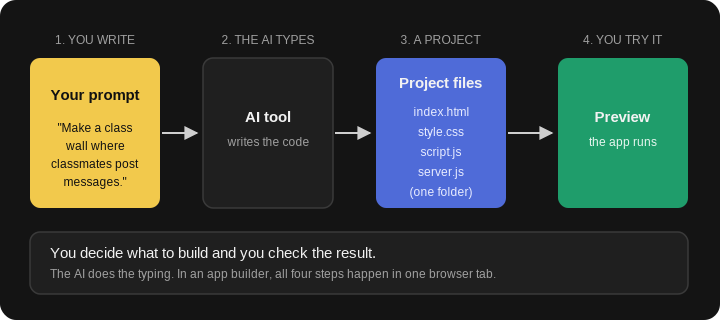
In short: a project is one folder that holds all the files of your app. Each file has one job, and the file extension tells you its kind.
Step 3: See it run in the preview
Next to the chat, most app builders show your app while it runs. This is the preview. It updates while the AI builds.
Try it like a user. Type your name and a message, and click “Post”. Does the message appear? Does the page still fit when you make the window narrow, like a phone?
Many app builders also give you a preview link: a web address that opens the current version of your app in its own tab. In some tools, only you and the people you invite can open it.
To let other people open your app, you publish it. The tool puts your app on its own computers and gives it an address. For example, Lovable gives each published project an address that ends in lovable.app. On some free plans, only people you invite can open it. To put an app online like this is also called deploying.
Everyone with the link can use your app, so don’t put passwords or private details into it.
Go deeper: From your laptop to a real website in one push (Level 1) explains publishing and preview links in more detail.
In short: the preview shows your app while it runs. A preview link opens it in its own tab. When you publish, other people can open it too.
Step 4: Change it with prompts
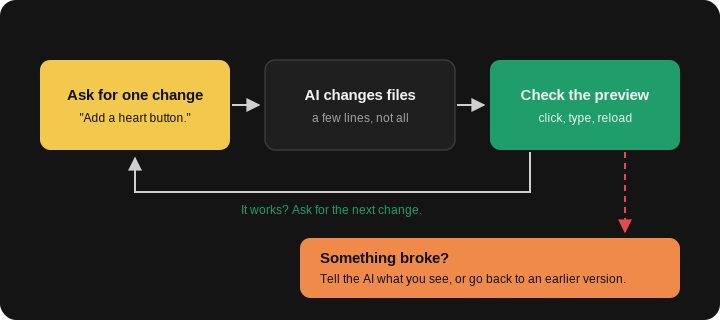
Now improve the app. Each change is one new prompt in the same chat, for example “Add a red heart button to each message, with a counter.”
After each prompt, check the preview again. Click the new button. Reload the page. Did the change work? Did anything else break?
Ask for one change per prompt. If you ask for five changes at once and something breaks, you can’t tell which change broke it.
If something breaks, tell the AI what you see: “When I click Post, nothing happens. Before your last change, it worked.” If you see an error message, copy it into the chat.
You can also go back. Some app builders keep a version history: a saved copy of your project after every change. Lovable, for example, saves every change as a version. Then you can return to the last version that worked.
Go deeper: The AI broke your working app. Here’s your undo button (Level 1) shows Git, the undo button that developers use for their code.
In short: ask for one change per prompt, then check the preview. If something breaks, describe what you see or go back to an earlier version.
On your laptop instead
With an AI code editor, the steps are almost the same, but the project lives on your laptop:
- Make an empty folder, for example
class-wall, and open it in the editor. - Type the same prompt into the editor’s AI chat. The AI makes the files in your folder.
- Ask the AI: “How do I run this app on my laptop?”
To start the app, the AI often uses a terminal: a window where you type text commands, instead of clicking. The AI can type the command for you. Then the terminal shows an address, for example http://localhost:3000. Open it in your browser.
localhost is a special name that means “this computer”. So the address works only on your laptop, and only while the command runs. If you send it to a friend, it won’t open for them.
Go deeper: It works on my laptop. Why can’t my friend open it? (Level 1) explains
localhost, the terminal and how to put your app online.
In short: an AI code editor puts your project in a folder on your laptop. The AI starts the app with a command in a terminal, and you open it at a
localhostaddress.
Read what the AI gave you
You don’t need to read every line yet. For each file, ask one question: does it run in the browser, or on a server?
- Files like
index.html,style.cssandscript.jsare usually the frontend. The browser downloads them and runs them. - Files like
server.js, or files in a folder calledapiorserver, are usually the backend. The browser never gets them.
Then check one important thing: where do the messages go? Post a message. Reload the page, or open the preview link on another device. Is the message still there?
A first version often keeps messages only inside the page in your browser. Then a reload clears them, and nobody else sees them. You can ask: “Make the messages stay after a reload, and let everyone see the same messages.” How the AI saves them matters a lot. Your app forgot everyone’s messages overnight. Why? shows what can go wrong.
It’s normal not to understand most of the code. The next lesson, The AI wrote your code. Can you read it?, teaches you to read it.
In short: sort the files into frontend and backend. Check where your data is saved. In the next lesson, you learn to read the code itself.
How it goes wrong
1. The AI says “Done!”, but it isn’t. An AI can say that a feature works when it doesn’t. Always test it yourself.
2. One huge prompt. You ask for logins, photos and a dark mode at once. Now nothing works, and you can’t tell why.
3. The data disappears. Messages are gone after a reload. Nothing saved them on a server.
4. A link that works only for you. A localhost address doesn’t work on other devices. A preview link might work only for people you invited. Test your link on a phone that isn’t yours.
5. A secret in the code. Some services give you a secret key: a kind of password that lets your app use the service. Never let the AI put a key into frontend files. Every visitor can read those files.
Go deeper: Your API key leaked, and strangers are spending your money (Level 2) explains where secret keys belong.
In short: test everything yourself, change one thing at a time, check where data is saved and keep secrets out of the frontend.
What good looks like
- You start with the smallest useful version.
- Each prompt asks for one change, and you test after each one.
- You know how to go back to the last version that worked.
- You can say which files are frontend and which are backend.
In short: small steps, a test after every step and a way back when something breaks.
This is your app for the rest of the site
Many later lessons end with a section called “Test your own app”, with short checks to try on a real app. Use the class wall that you build today, or any small app that you build in the same way. So keep the project.
In short: keep this project. The “Test your own app” sections in later lessons are for this app.
Try it yourself
Experiment 1: Build and sort
- Open an AI app builder with a free plan, and sign in.
- Paste the prompt from Step 1. Change the class name to your own.
- Post three messages in the preview.
- Open the code or file view. Next to each file name, write “frontend”, “backend” or “not sure”.
- Ask the AI to check your list.
Experiment 2: Break it and go back
- Ask for a silly change: “Make every message spin around.”
- Look at the preview.
- Find the version history in your tool, or ask the AI to undo the last change.
- Check that your class wall looks the same as before.
Takeaways
Key terms
- Prompt: the message that you type to an AI.
- AI app builder: a website where an AI builds and runs a whole app from your prompts.
- Project: one folder with all the files of one app.
- File extension: the end of a file name, like
.html, that tells you what kind of file it is. - Preview: your app while it runs inside the tool, as you build it.
- Preview link: a web address that opens the current version of your app in its own tab.
- Publish: put your app online, so that other people can open it.
- Terminal: a window where you type text commands.
Red flags
- The AI says “it works”, but you haven’t tried it yourself.
- One prompt changed many files, and you can’t say what changed.
- Your messages are gone after a reload, or your friends can’t see them.
- You sent a friend a
localhostlink. - A secret key is in a frontend file, like
script.js.
Ask your AI
- “List every file in my project. For each one, say what it does in one short sentence, and whether it runs in the browser or on the server.”
- “Where does my app save its data? Will it still be there after a reload, and can other people see it?”
- “Before you change anything, tell me your plan in three short steps.”
Going deeper (optional, for readers who want more detail)
Better prompts. Say what must not change, for example “Don’t change the colors or the layout.” Ask the AI to explain its plan before it writes code. When the app looks wrong, describe what you see and what you expected. A screenshot also helps, if your tool accepts pictures.
The code view. Most tools let you open the code itself. In Bolt, the code view lets you change the code by hand, and those changes use no tokens (Bolt’s unit of AI use). In Gemini’s Canvas, you can ask Gemini to update an app or edit the code in the Code view.
Chat assistants that show apps. Claude’s artifacts and Gemini’s Canvas can show a small app beside the chat. They work well for apps that run only in the browser, like a quiz or a calculator. For an app with a backend, like a class wall that everyone shares, use an app builder or a code editor.
Free plans run out. When your daily or monthly credits are used up, you wait for the next day or month, or you pay. Bolt says that its free tokens don’t roll over to the next month. Publishing has limits too. For example, Replit’s free Starter plan includes 1 free published app.
Code editors and their AI. VS Code is a free code editor from Microsoft. GitHub Copilot adds AI to it, and Copilot has a free plan with monthly limits. Cursor is a code editor with AI built in, and it also has a free plan with limits.
Keep a copy of your code. Some app builders can copy your project to GitHub, a website that stores code. v0’s free plan includes this. Then your code is safe outside the tool, and you can open it in a code editor later.
References (14)
- Dealing with files: MDN Web Docs. Keep all the files of one website in one folder, with
index.htmlas the home page and separate files for CSS and JavaScript. - Projects overview: Lovable Docs. A project holds its chat, preview, code and version history; unpublished projects open through a preview link; published projects get a
lovable.appaddress. - Lovable pricing: Lovable. A free plan with daily credits, where published sites open only for people you invite.
- Quickstart: Bolt Help Center. You type a prompt, test the app in the Preview window, edit in the code view without tokens and publish to a link.
- Bolt pricing: Bolt. A free plan with daily and monthly token limits that don’t roll over.
- Starter plan: Replit Docs. Replit’s free plan, with daily AI credits and 1 free published app.
- v0 pricing: v0 by Vercel. A free plan with a daily message limit that can deploy apps and sync with GitHub.
- Cursor pricing: Cursor. A free plan with limited AI requests.
- GitHub Copilot plans: GitHub. Copilot Free, including agent mode in VS Code. The VS Code FAQ says VS Code itself is free.
- ChatGPT pricing: OpenAI. ChatGPT has a free version for everyone.
- What are artifacts and how do I use them?: Claude Help Center. Artifacts such as small interactive tools open beside the chat, and they’re available on the Free plan.
- Create docs, apps & more with Canvas: Gemini Apps Help. Canvas creates apps with a preview, and you can update them with prompts or in the Code view. Gemini subscriptions lists a free plan that includes Canvas.