Level 1 · Foundations
It works on my machine, but not on yours. Blame the packages
It works on my machine, but not on yours. Blame the packages
Before you start This lesson uses words from earlier lessons.
- Terminal: a window where you type commands for your computer to run. (It works on my laptop. Why can’t my friend open it?)
- Backend: the part of your app that runs on a server, not in the browser. (A player scored 999,999 points by editing the page. How?)
- JSON: a text format for data, with names and values in curly brackets. (The hidden conversation behind every button you tap)
- Deploying: putting your app on a server for everyone to use. (It works on my laptop. Why can’t my friend open it?)
Confetti in one line
You build a quiz game with an AI helper. You ask it: “When a player gets every answer right, make confetti fly across the screen.”
The AI gives you some code for your game. It also gives you one command to type in the terminal:
npm install canvas-confettiYou run it. A few seconds later, confetti flies across your screen.
But you didn’t write any confetti code. The AI didn’t write it either. Someone else wrote it and shared it with the world. That one command downloaded their code and put it inside your project.
That’s amazing. It also causes one of the most famous problems in programming. One day you send your project to a friend. It works perfectly for you. On their computer, it crashes with an error like Cannot find module. You say: “But it works on my machine!”
Don’t worry if that error means nothing to you yet. At the end of this lesson, you’ll know why it happens and how to fix it.
Code other people wrote: packages
Think about building with LEGO. You don’t make your own bricks. You take bricks that someone else made, and you put them together into something new.
Code works in the same way. Thousands of people have already written code for common jobs and shared it for free. A bundle of shared code like this is called a package.
There are packages for almost everything:
- working with dates and times
- talking to a database
- sending emails
- running a web server
- making confetti
Most apps are made from many packages, plus a smaller amount of code that the app’s makers wrote. When your AI builds an app, it uses packages all the time.
Where the LEGO comparison stops working: LEGO bricks come from one company that checks every brick. Packages come from thousands of different people. Anyone can publish one. Nobody checks every package before you install it.
Go deeper: The AI suggested a package that didn’t exist. Then someone made it (Level 2) shows how attackers use this. It also shows how to protect yourself.
In short: a package is code that someone else wrote and shared. Most apps are made from many packages.
npm: the package library
Most JavaScript packages live in one giant online collection called the npm registry. You can search it at npmjs.com.
To get packages from it, you use a tool called npm. This tool is a package manager: a program that downloads packages, puts them in your project and keeps a record of them.
npm comes with Node.js. Node.js is the program that runs JavaScript on your computer, outside a browser. If your app’s backend is written in JavaScript, Node.js runs it.
To check that both are installed, type these commands in your terminal:
node -v
npm -v
Each command prints a version number. If you see “command not found” or “not recognized” instead, Node.js isn’t installed yet. You can download it from nodejs.org.
In short: the npm registry is a huge online library of packages. npm is the tool that downloads them. It comes with Node.js.
package.json: your project’s shopping list
When you run npm install canvas-confetti, npm does two things. It downloads the package. Then it writes the package’s name into a file called package.json.
Every JavaScript project has a package.json in its main folder. Here’s a small one:
{
  "name": "quiz-game",
  "version": "1.0.0",
  "dependencies": {
    "canvas-confetti": "^1.9.4",
    "express": "^5.1.0"
  }
}
In plain English:
- name and version: the name of your project and its own version number.
- dependencies: the packages that your project needs to run. Each one is called a dependency, because your project depends on it. Next to each name is a version number. The next section explains those numbers.
Here’s why this file matters. package.json lists every package, so anyone can get all of them with one command. They type npm install with no package name after it. npm reads the list and downloads everything on it.
It’s like giving someone a shopping list, instead of carrying the whole shop to their house.
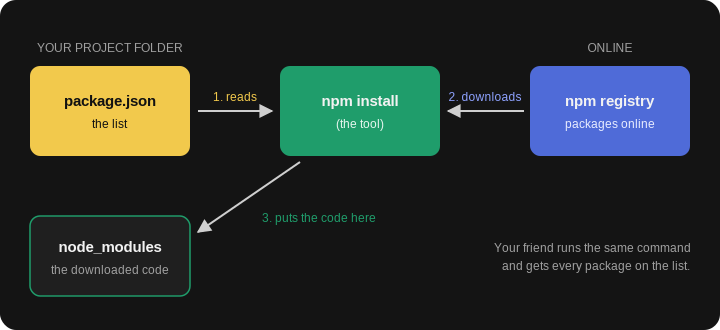
In short: package.json is the list of packages that your project needs. When you run
npm installin the project folder, npm downloads everything on the list.
Versions: what the three numbers mean
Packages change over time. Their authors fix bugs and add features. Each new release gets a version number, like 5.1.0.
Each of the three numbers has a meaning. Think of updates to a game:
| Number that changes | Example | What it means | Like in a game |
|---|---|---|---|
| First (major) | 5.1.0 → 6.0.0 | A big change. Code that worked before might break. | A new version where your old saves don’t load |
| Middle (minor) | 5.1.0 → 5.2.0 | New features. Old code should still work. | New levels added |
| Last (patch) | 5.1.0 → 5.1.1 | Bug fixes only. | A fix for a glitch |
Look at the word “should”. This is a promise that authors try to keep. Sometimes a small update breaks things anyway.
The little ^ symbol
Look back at package.json. It says "^5.1.0", not "5.1.0". The ^ symbol means:
“Version 5.1.0, or any newer version that still starts with 5.”
So npm can install 5.2.0 or 5.9.3, but not 6.0.0. npm adds the ^ for you when you install a package.
This is useful, because you get bug fixes without asking. But two people who install on different days can get different versions.
In short: versions have three numbers: major, minor and patch. A change in the first number can break your code. The
^means “this version or newer, with the same first number”.
node_modules: where packages live
After npm install, a new folder appears in your project: node_modules. The downloaded code goes there.
Open it. You can get a surprise. You installed two packages, but there can be dozens or even hundreds of folders inside. Why?
Packages use other packages. The express package needs other packages to work. Those packages need more packages. npm installs the whole chain. The packages that came without your request are called indirect dependencies.
It’s like ordering a toy that needs batteries, and the batteries need a charger. You ordered one thing, but three things arrived.
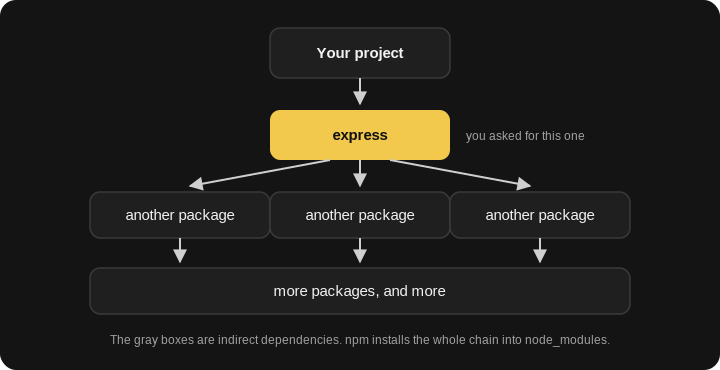
Here are three rules for node_modules:
- Never edit files inside it. The next install replaces your changes.
- Don’t send it to anyone. It can be very large, and you can always make it again.
- If packages act strangely, delete it and run
npm installagain. npm makes it again from your list.
In short: node_modules holds the downloaded code, including the packages that your packages need. You never edit it or share it. You can always make it again.
The lockfile: the exact versions
Remember the ^ symbol? Because of it, package.json doesn’t say exactly which version to install. It says “this one or newer”.
So npm writes a second file to remember what it really installed: package-lock.json. It records the exact version of every package in node_modules, including all the indirect ones. A file like this is called a lockfile, because it locks the versions in place.
When your friend runs npm install and your lockfile is in the project, npm uses the exact versions in it. Your friend gets the same versions that you have.
Here’s a comparison:
package.jsonis a shopping list that says “a loaf of bread”.package-lock.jsonis the receipt that says which bread, which brand and which size you bought.
With the receipt, someone else can buy exactly the same things.
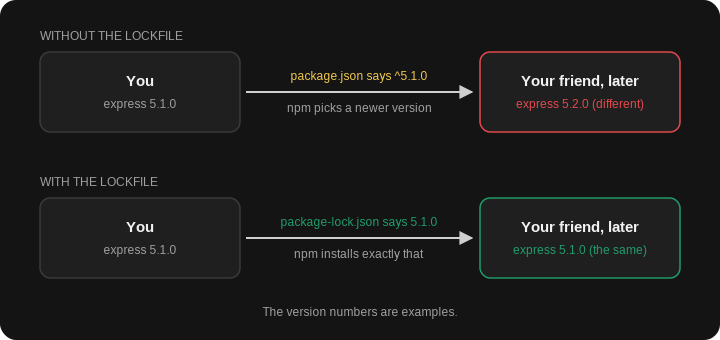
Here are two rules:
- Always keep
package-lock.jsonwith your project. Don’t delete it to “fix” problems. - Don’t edit it by hand. npm updates it for you every time you install or remove a package.
In short: package-lock.json records the exact version of every installed package. With it, everyone gets the same versions.
How it goes wrong: “It works on my machine”
Now you can understand the famous problem. In an error like Cannot find module 'express', a module is a piece of code that your code loads, here a package. These are the most common reasons why a project works on one computer and breaks on another:
| What you see | What happened | Fix |
|---|---|---|
Cannot find module 'express' |
Nobody downloaded the packages on this computer. Or the AI wrote code that uses a package, but nobody ran the install command. | Run npm install in the project folder |
| Strange errors after a fresh install | There was no lockfile, so npm installed newer versions than yours | Keep package-lock.json with your project |
| Errors about the Node.js version | The two computers have different versions of Node.js | Compare node -v on both computers |
| A package works for you but is missing everywhere else | It’s in your node_modules, but not in package.json |
Install it with npm install <name>, so that npm adds it to the list |
Remember: when you deploy, the server is “another machine” too. The server installs your packages from package.json and the lockfile, in the same way as your friend. If it works on your laptop but not on the server, check these four things first.
Go deeper: From your laptop to a real website in one push (Level 1) shows where a server installs your packages when you deploy.
In short: “it works on my machine” usually means that the two computers have different packages, different versions or a different Node.js version.
What good looks like
Good habits with packages:
package.jsonandpackage-lock.jsonalways go with your project.node_modulesnever does.- After you download a project, run
npm installfirst. Do it again wheneverpackage.jsonchanges. - When the AI adds a package, look at
package.json. See what it added, and ask the AI what the package is for. - Before you add a package, ask: do we need it? Every package is code that you trust. On
npmjs.com, check that the name is spelled correctly. Check that other people use it, and that its authors updated it recently.
In short: share the list and the lockfile, not node_modules. Install before you run. Know what every package is for.
Try it yourself
You need Node.js for this. Check with node -v first.
- Make a new, empty folder.
- Open a terminal inside the folder.
- Run
npm init -y. This makes apackage.jsonfor you. The-ymeans “yes to all the default settings”. - Run
npm install express. - Read the last lines that npm prints. Find a line like “added … packages”. You asked for one package. How many did you get?
- Open
package.json. Findexpressunderdependencies, with a^before its version. - Open the
node_modulesfolder and count the folders inside. - Run
npm ls. It shows the packages that you installed yourself. - Run
npm ls --all. It shows the whole family tree, including indirect dependencies. - Delete the
node_modulesfolder. - Run
npm installagain. The folder comes back, exactly the same, because of the lockfile.
Takeaways
Key terms
- Package: a bundle of code that someone wrote and shared, so that other people can use it.
- npm: the tool that downloads packages from the npm registry.
- package.json: the list of packages that your project needs.
- Dependency: a package that your project needs to work.
- Version: a number like 5.1.0. The parts are major, minor and patch.
- node_modules: the folder where downloaded packages live.
- Lockfile (package-lock.json): the exact version of every installed package.
Which one broke?
Cannot find module→ the packages aren’t installed on this computer. Runnpm install.- It works for you, but breaks after someone else installs → the lockfile is missing, so the versions are different.
- It works on your laptop, but breaks on the server → check that the lockfile is included and that the Node.js versions match.
- It breaks after an update → check if the first number of a version changed.
Ask your AI
- “List every package in my package.json and explain in one sentence what each one does. Are any of them unused?”
- “I get this error: [paste it]. Is a package missing, or is it a version problem?”
- “Before you add a new package, tell me why we need it and whether we could do it without one.”
Going deeper (optional, for readers who want more detail)
Semantic versioning. The major.minor.patch system is called semantic versioning, or semver. npm’s rules for version ranges come from the node-semver package.
The ^ rule for versions that start with 0. Before version 1.0.0, people think of a package as unstable. For these versions, ^ is stricter: ^0.2.3 allows 0.2.4, but not 0.3.0. It never changes the left-most number that isn’t zero.
The ~ symbol. ~1.2.3 allows only patch updates: 1.2.4, but not 1.3.0.
dependencies vs devDependencies. npm install --save-dev <name> (or -D) puts a package under devDependencies. These are tools that you need only while you build, like a testing library. The packages under dependencies are the ones that your app needs to run.
npm ci. Build servers are computers that prepare your app before it goes live. They usually run npm ci instead of npm install. npm ci needs a lockfile, and it deletes node_modules first. Then it installs exactly what the lockfile says. It stops with an error if package.json and the lockfile don’t match. It never changes either file.
Indirect dependencies are also called transitive dependencies.
Other package managers. Yarn and pnpm do the same job as npm. Each has its own lockfile: yarn.lock and pnpm-lock.yaml. Use one package manager per project, so that you have only one lockfile.
Recording the Node.js version. You can add an engines field to package.json, like "engines": { "node": ">=20" }. This tells people who download your project which Node.js versions your app expects. It also tells the tools that they use.
Seeing what’s out of date. npm outdated lists packages that have newer versions. npm update updates them within the ranges in package.json.
References (8)
- Downloading and installing Node.js and npm: npm Docs. The Node.js installer installs npm too, and
node -vandnpm -vcheck the versions. - About semantic versioning: npm Docs. What a change in the major, minor and patch number means.
- node-semver: npm on GitHub. How
^and~ranges work, including the stricter^rule for versions starting with 0. - config: save-prefix: npm Docs. npm adds
^before the version by default when it saves a package topackage.json. - package-lock.json: npm Docs. npm writes the lockfile automatically, it records the exact installed tree, and it should be kept with the project.
- npm ci: npm Docs.
npm cineeds a lockfile, deletesnode_modulesfirst, fails on a mismatch and never changes either file. - npm ls: npm Docs.
npm lsshows only direct dependencies unless you add--all. - An introduction to the npm package manager: Node.js.
--save-devanddevDependencies, and whatnpm updatedoes.