Level 2 · Builder
Your API key leaked, and strangers are spending your money
- Secrets
- Frontend exposure
- Public environment variable prefixes
- Git history
- Key rotation
- Secret scanning
Your API key leaked, and strangers are spending your money
Before you start Words from earlier lessons:
- Secret / API key: a value that lets someone act as you. (Your app’s secrets don’t belong in your code. Here’s where they go)
- Environment variable and
.gitignore: settings kept outside your code, often in a.envfile..gitignorelists files that Git must never save. (Your app’s secrets don’t belong in your code. Here’s where they go)- Frontend and backend: the code in each visitor’s browser, and the code on your server. (A player scored 999,999 points by editing the page. How?)
- Commit and repository: a commit is a save point in Git. A repository is a project folder that Git tracks, with its full history. (The AI broke your working app. Here’s your undo button)
The email nobody wants
You built an AI cooking assistant. People type “what can I make with eggs and rice?” and get a recipe. Your app sends each question to an AI provider, with your API key. You pay for every question.
You share the app with friends on Saturday. You put the code on GitHub, so that a friend can help.
On Monday morning, you get an email from the AI provider. Over the weekend, your account used far more than your normal monthly amount. You check your app. It had maybe forty visitors.
Someone else has your key. They use it for their own projects, and you pay.
You already know that secrets do not belong in frontend code or in Git. This lesson shows the exact ways that keys still escape in AI-built apps. It also shows how to find a leak in your own app, and what to do in the first hour after a leak.
The mental model: published is published
Here is the whole idea in one line:
If a secret was ever sent to a browser or pushed to a public repository, it is public. You cannot take it back.
An API key works like a house key. Anyone who has a copy can open the door. The service cannot tell your copy from a stolen copy, so it charges you for both.
Where the comparison stops working: if someone copies your house key, you change the lock, and the copy is useless. With an API key, you can do the same thing. You create a new key and turn off the old key. This is called rotating the key. A new lock takes time, but a new key takes minutes. So rotate the key immediately if you think that it leaked.
There are two common roads to “public”. Most leaked keys take one of them.
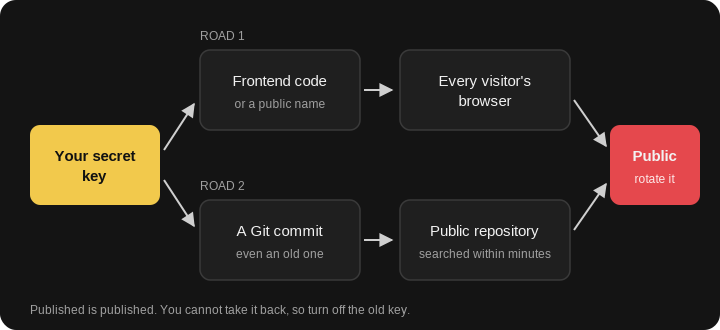
Road 1: The key gets into the frontend
The browser can only run code that it downloaded. So everything in your frontend, including any key, is on every visitor’s computer. AI-written code puts a key there in three ways.
Way 1: The key is written into frontend code
// components/Chat.js: runs in the browser
const res = await fetch("https://api.ai-provider.example/v1/chat", {
  method: "POST",
  headers: { Authorization: "Bearer my-secret-key-123" },
  body: JSON.stringify({ message }),
});
In plain English: the user asks a question. The browser sends it directly to the AI provider, with your key in the Authorization header. (A header is a line of extra details on a request. “Bearer” is a common way to say “here is my key” in that header.)
It works. But now every visitor’s browser has your key. Anyone can do this:
- Open developer tools (F12 on Windows, Cmd+Option+I on Mac).
- Click the Network tab.
- Ask one question in your app.
- Read the key in the request.
Way 2: The key gets a “public” name
The AI moves the key into .env, which looks safer:
NEXT_PUBLIC_AI_KEY=my-secret-key-123But you learned this before. Next.js and Vite are popular frameworks (tools for building web apps). When your app is built (prepared to go online), they copy some variables into the frontend’s JavaScript:
- In Next.js, names that start with
NEXT_PUBLIC_. - In Vite, names that start with
VITE_.
So your key is in a file that every visitor downloads, exactly as in Way 1. Only the way it got there is different.
Way 3: The AI “fixes” an error
This way is the hardest to notice. You did everything right. The key is in .env as AI_API_KEY, with no prefix. But your frontend code reads process.env.AI_API_KEY, and gets undefined. Frameworks keep variables without the prefix away from the browser on purpose.
You paste the error into your AI. It replies: “Rename the variable to NEXT_PUBLIC_AI_API_KEY so it’s available on the client.” The error goes away. The key is now public.
The error was the framework’s protection. The real fix is to move the code that uses the key to the backend.
“But it’s hidden in a huge file”
Before your app goes online, its frontend code is compressed into a few long files that are hard to read. That is not protection. Anyone can search those files for text, and programs can do it automatically.
Some keys are made to be public
Not every key in the frontend is a leak. Some services give you two kinds:
| Service | Safe in the frontend | Must stay on the backend |
|---|---|---|
| Stripe (payments) | Publishable key, starts with pk_ |
Secret key sk_ and restricted key rk_ |
| Supabase (database) | Publishable key (the older version is called the anon key) |
Secret key (the older version is called the service_role key) |
Public keys like these can only do harmless things. The Supabase publishable key is safe only if your tables have Row Level Security turned on. Row Level Security limits what each user can reach. If a service’s docs do not say that a key is safe to publish, treat it as secret.
Go deeper: Can strangers read your whole database? Check in 5 minutes (Level 2) explains Row Level Security.
Road 2: The key gets into Git history
You know that .env belongs in .gitignore. But keys still get into Git in these ways:
- The first commit came before
.gitignore. The first commit saved.env. If you add.envto.gitignorelater, it stays in that commit. - The key is in a code file, not in
.env. Examples are a test script, a settings file, or a “temporary” line that the AI wrote while it fixed a bug. - “I deleted it in the next commit.” The new commit does not have the key. The old commit still does. Anyone can open any old commit on GitHub.
- The repository was private, and later public. Then every commit becomes public, including old commits that you forgot about.
If the repository is public, assume that someone found the key quickly. Programs constantly copy new public code and search it for keys. In one documented case, security researchers at Palo Alto Networks’ Unit 42 studied this. Attackers used leaked cloud keys within five minutes after the keys appeared on public GitHub.
If you make the repository private afterwards, that does not help. The copies already exist.
What good looks like
Keep keys on the backend, always
The frontend asks your backend. Your backend adds the key and asks the AI provider. The key never leaves your server.
In Next.js, a file called app/api/chat/route.js becomes a backend endpoint at /api/chat. An endpoint is an address on your backend that the frontend sends requests to. This code runs on your server, never in the browser:
export async function POST(request) {
  const { message } = await request.json();
  const aiRes = await fetch("https://api.ai-provider.example/v1/chat", {
    method: "POST", body: JSON.stringify({ message }),
    headers: { Authorization: `Bearer ${process.env.AI_API_KEY}` },
  });
  return Response.json(await aiRes.json());
}
In plain English:
- Line 1: this function runs when a POST request (a request that sends data) comes to
/api/chat. - Line 2: the code reads the user’s question from the request.
- Lines 3–6: the code sends the question to the AI provider. On line 5, the key comes from
process.env.AI_API_KEY, which only the server can read. - Line 7: the code sends the AI’s answer back to the browser, without the key.
The frontend now calls fetch("/api/chat", ...) and never sees the key.
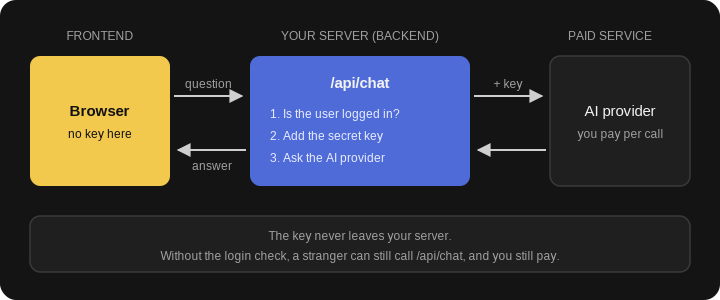
Your endpoint is the new front door. A hidden key alone is not enough. If /api/chat accepts requests from anyone, a stranger can call it a million times, and you still pay. So add a check at the start of the function:
const user = await getLoggedInUser(request);
if (!user) return Response.json({ error: "Log in first" }, { status: 401 });
getLoggedInUser stands for the function that your login system gives you. If nobody is logged in, the endpoint replies 401 (“log in first”) and never calls the AI provider. Also limit how many requests each user can send.
Go deeper: Never store a password. Here’s what to store instead (Level 2) explains how the server knows who is logged in. Bots signed up 10,000 times overnight. Now what? (Level 2) shows how to limit requests.
When a key leaks: the first hour
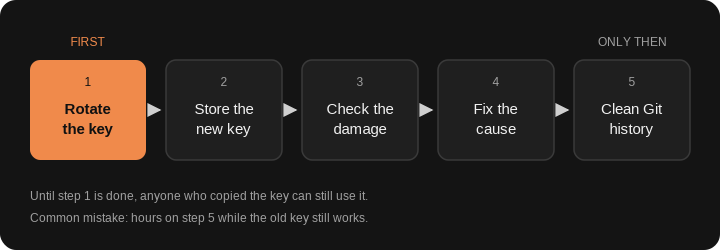
Do these steps in this order. The order is important.
- Rotate the key first. In the provider’s dashboard, create a new key. Delete or turn off the old key. Until you do this, the thief can still use it. Do not wait until you know how it leaked.
- Put the new key in the right place. Your hosting platform is the service that runs your app online. Add the key to its environment variables, with no public prefix. Then deploy (publish) your app again.
- Check the damage. Look at the provider’s usage, billing and logs (records of activity). Find out what was used, and when. If it was a database password, check what someone read or changed.
- Fix the cause. Move the code to the backend, fix
.gitignore, and remove the key from code files. - Then think about history. GitHub’s own docs say: revoke (turn off) the key first. When the key no longer works, you often do not need to remove it from history. A history rewrite is slow, and it cannot remove copies that other people already made.
The most common mistake is to do step 5 first. People spend hours to clean Git history while the old key still works.
Let GitHub watch for you
GitHub runs secret scanning: it searches code for text that looks like keys.
- On public repositories, it is free and on automatically. It searches your whole history and creates an alert when it finds a key.
- GitHub tells many providers directly. Sometimes it finds a key from one of its partner companies in a public repository. Then it tells that company, which may turn the key off.
- Push protection checks your commits when you push them (send them to GitHub). It can find a known kind of secret on its way to a public repository. Then it blocks the push and tells you why. It is on by default for your account. It offers a way to push anyway. Do not use that option for a real key.
For private repositories that an organization owns, secret scanning is part of a paid GitHub product.
None of this replaces the main rule: keep keys out of your code. Secret scanning is an extra layer of protection, and it only catches the kinds of secrets that it knows.
Test your own app
You need an app of your own for this part. No app yet? Start with Your first app in an afternoon, with an AI doing the typing. Built it in an AI app builder? Ask its AI to do each step below for you, or to add the missing part first (for example, a login).
-
Search your live site. Open your app online in Chrome and open developer tools. Press Ctrl+Shift+F (Windows) or Cmd+Option+F (Mac) to search every file that the page loaded.
-
Search for each secret. Search for the first 8 characters of each secret in your
.env. Also search forkey,secretandBearer. Use your app a little first, so that more files load. -
Read the request headers. In the Network tab, use your app’s main features. Click the requests that go to other companies’ servers. Look for a key that is not a publishable key.
-
Check public names. List every variable that starts with
NEXT_PUBLIC_orVITE_. For each one, ask: would I post this value on social media? If not, it is in the wrong place. -
Check your history. Open a terminal (the text window where you type commands) in your project. Run this command:
git log --all --oneline -- .envThis command lists every commit that added, changed or deleted
.env. If it prints anything, Git saved.envat some point. Treat every secret in it as leaked, and rotate them all. -
Check GitHub. In your repository, look for secret scanning alerts in the security area.
Takeaways
Key terms
- Secret: a value that lets someone act as you, like an API key or a database password.
- Publishable key: a key that a service made to be public, with limited powers.
- Rotating a key: you create a new key and turn off the old key.
- Git history: every commit ever made. A deleted file only affects new commits.
- Secret scanning: an automatic search of code for text that looks like keys.
- Push protection: a block on a push that contains a known kind of secret.
Red flags in AI-written code
- A key written directly in a file that runs in the browser.
- A secret in a variable that starts with
NEXT_PUBLIC_orVITE_. - The AI fixes
undefinedwith a public prefix on a secret. - Frontend code calls a paid service (AI, email, payments) directly with a key.
- A backend endpoint uses a paid key with no login check and no request limit.
- Someone says “I deleted the key in the next commit”.
Ask your AI
- “Which code in my app runs in the browser, and does any of it use a secret key?”
- “Move every call to a paid API into a backend endpoint. Make the endpoint check the user is logged in.”
- “My key leaked. Walk me through rotating it with [provider name], updating my hosting platform and redeploying.”
Going deeper (optional, for readers who want more detail)
Mobile apps too. A mobile app is a frontend that people install. Anyone can unpack it and read the keys inside. Use the same backend pattern.
Limit what each key can do. Many providers let you create keys with fewer powers or with spending limits. For example, Stripe recommends restricted keys (rk_) that can only do what your app needs. Stripe also lets you limit which IP addresses (the network addresses of computers) can use a key. A leaked limited key does less damage. You woke up to a $10,000 cloud bill. What happened? explains spending limits and alerts.
History rewrites, if you must. GitHub’s docs recommend a tool called git-filter-repo (version 2.47 or later, with the --sensitive-data-removal option). Know the costs:
- Every commit after the leak gets a new ID.
- Collaborators must download the repository again.
- Forks (other people’s copies of the repository) still contain the old commits.
- To fully remove cached views on GitHub, you must contact GitHub Support.
For these reasons, rotation always comes first.
Scans on your own computer. Tools such as Gitleaks search your files and Git history for secrets. They can run automatically before every commit. So they catch keys before the keys get to GitHub, also in private repositories.
Secret managers. Larger teams keep secrets in a special service, a secret manager, not in .env files. Your hosting platform’s environment variables page is a simple version of the same idea.
Supabase’s secret key. Supabase’s secret key (and the older service_role key) skips Row Level Security completely. If it gets into frontend code, anyone who copies it gets full access to your database. Supabase’s newer secret keys refuse requests that come from a browser. But that does not stop someone who copied the key from using it in their own code.
References (8)
- How to use environment variables in Next.js: Next.js docs. Variables starting with
NEXT_PUBLIC_are copied into the JavaScript sent to the browser, and other variables stay on the server. - Env Variables and Modes: Vite docs. Variables starting with
VITE_are exposed in the frontend code. - About secret scanning: GitHub Docs. Secret scanning is free on public repositories, searches the whole history, alerts partner providers, and needs a paid product for private organization repositories.
- About push protection: GitHub Docs. Push protection for your account is on by default, blocks known secrets on their way to public repositories, and can be bypassed.
- Removing sensitive data from a repository: GitHub Docs. Revoke or rotate the secret first,
git-filter-repo2.47 or later with--sensitive-data-removal, and the costs of rewriting history. - API keys: Stripe docs. Publishable (
pk_), secret (sk_) and restricted (rk_) keys, the advice to use restricted keys, and limiting which IP addresses can use a key. - API keys: Supabase docs. Publishable and secret keys, their older
anonandservice_rolenames, and that the secret key skips Row Level Security. - CloudKeys in the Air: Tracking Malicious Operations of Exposed IAM Keys: Palo Alto Networks Unit 42, October 30, 2023. Attackers used cloud keys leaked on public GitHub within five minutes.