Level 1 · Foundations
Your app's secrets don't belong in your code. Here's where they go
Your app’s secrets don’t belong in your code. Here’s where they go
Before you start This lesson uses words from earlier lessons.
- Frontend and backend: the frontend runs in the browser. Anyone can see it there. The backend runs on your server. (A player scored 999,999 points by editing the page. How?)
- API: a way for one program to ask another program for data. (The hidden conversation behind every button you tap)
- Process: a program that runs now. (Your app restarted and all the likes vanished)
- Production: the live version of your app that real users visit. (It works on my laptop. Why can’t my friend open it?)
A password inside your code
You build a weather app for your school’s sports day. It shows if it will rain.
Your app gets the weather from a weather service, through the service’s API. To use the API, you sign up. Then the service gives you an API key. An API key is a long secret code, like a password for programs.
Your app sends the key with every request, so the service knows that the request comes from you. If you go over the free limit, the service can charge you.
You ask your AI to connect your app to the weather service. It writes the key directly into your code:
const apiKey = "wk-not-a-real-key-123";The app works. But this one line causes two problems:
- Anyone who gets a copy of your code gets your key. They can use it as if they were you.
- Your laptop and production can need different values. To change the key, you have to change the code.
This lesson shows where keys and other settings should live instead.
In short: an API key is a secret code that proves a request comes from you. If you write it inside your code, you cause problems.
Settings: same game, different settings
Think of a video game. Everyone who plays it has the same game. But each player can choose their own settings: volume, language, controls.
Apps work in the same way. The code is the same on your laptop and in production. But some values must be different in each place. For example:
- Which database to use (a test one on your laptop, the real one in production)
- Which API key to use
- The app’s web address
Values like these, kept separate from the code, are called configuration, or config for short.
In short: configuration is the settings that change between places, while the code stays the same.
Secrets: settings that act as you
Some settings are harmless if someone sees them, like the name of your app.
Other settings are dangerous. An API key or a database password lets anyone who has it act as you. They can use your account, read your data or make you pay big bills. Settings like these are called secrets.
Think of the code for your school locker. If you write it on the locker door, you never forget it. But everyone else can open your locker too.
Secrets don’t belong in code, because code travels:
- You share it with a friend, or upload it to a website.
- You paste it into an AI chat tool.
- Your frontend code goes to every visitor’s browser, where anyone can read it.
Every copy of the code has the secret in it.
Go deeper: Your API key leaked, and strangers are spending your money (Level 2) shows how keys leak. It also shows what to do if yours does.
In short: secrets are settings that let someone act as you. Code gets copied, so secrets must live somewhere else.
Environment variables: notes given to a process
So where should settings live? In environment variables.
When a process starts, it gets a small list of named values from the program that started it. Each item is a name and a value, like WEATHER_API_KEY and wk-not-a-real-key-123. This list is called the process’s environment. Each item is an environment variable.
Think of a note in a lunchbox. Every child gets the same lunchbox. But each parent writes a different note and puts it inside. Your code is the lunchbox. Your laptop writes one note. Production writes another note.
Here’s how JavaScript code on the backend reads an environment variable:
const apiKey = process.env.WEATHER_API_KEY;In plain English:
process.envis the list of environment variables that this process got..WEATHER_API_KEYpicks the one with that name.- The code stores the value in
apiKey, ready to use.
Now the key isn’t in the code. The code only says “use the key that I get”. Your laptop gives it one key. Production can give it another key.
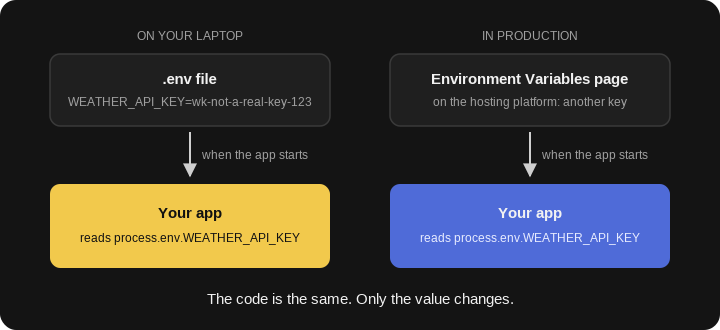
Where the lunchbox idea stops working: a parent can change a note at lunchtime. Environment variables don’t change like that. A process reads its list when it starts. If you change a value, you must restart the process to get the new value.
In short: environment variables are named values that a process gets when it starts. Code reads them with
process.env.
The .env file: settings on your laptop
On your laptop, you need a place to write your environment variables. Most projects use a file called .env (say it “dot env”). It is in your project’s main folder.
It looks like this:
WEATHER_API_KEY=wk-not-a-real-key-123
SITE_NAME=Sports Day Weather
In plain English:
- Each line is one environment variable.
- The name is on the left of the
=. The value is on the right. - By habit, names use CAPITAL letters and underscores.
When your app starts, the tool that starts it reads .env. Then it gives those values to your app. Next.js and Vite, two popular tools for building web apps, do this automatically.
The . at the start of the name is normal. On Mac and Linux, files that start with a dot are hidden by default. If you can’t see .env in your file explorer, look in your code editor (the app where you write code).
In short:
.envis a file on your laptop with one setting per line. Your tools read it when the app starts.
Keep .env out of git
Later, you’ll use a tool called git. Git saves versions of your project, so you can go back if something breaks. It can also upload your project to GitHub, a website where people store code. Many projects on GitHub are public, so anyone can read them.
Git saves every file in your project, unless you tell it not to. You tell it with a file called .gitignore: a list of files that git must skip.
Your .gitignore should include a line like this:
.envThis means: “never save or upload .env”. Your secrets stay on your laptop.
Some tools add this line for you. For example, new Next.js projects already list .env files in .gitignore. Check yours anyway. It takes ten seconds.
Instead of .env, you can share a file called .env.example. It has the same names, but no real values:
WEATHER_API_KEY=
SITE_NAME=
It tells other people which settings your app needs. It doesn’t show any secrets.
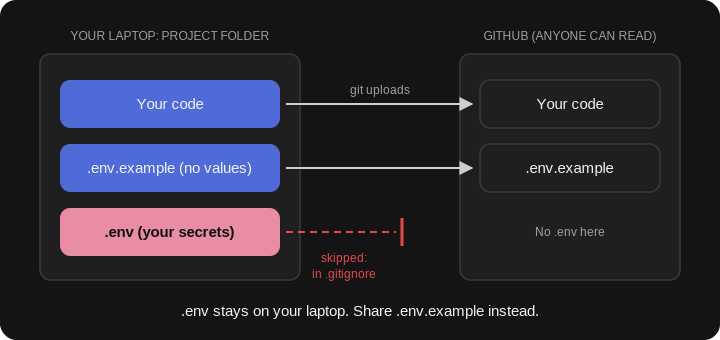
Warning: do not expect .gitignore to fix the past. It stops git from saving a file only from now on. If git already saved your .env before, older saved versions still have it.
Go deeper: The AI broke your working app. Here’s your undo button (Level 1) explains git and GitHub in full.
In short: list
.envin.gitignore, so it’s never uploaded. Share.env.example, with no real values, instead.
Settings in production
Your .env file stays on your laptop. So how does production get its settings?
Hosting platforms like Vercel and Netlify have an Environment Variables page in your project’s settings. You type each name and value there. The platform gives them to your app when it runs.
Remember these two things:
- Add every variable that your app needs on that page. If a variable is only in your
.envfile, production doesn’t have it. - Deploy again after a change. On Vercel, for example, changes to environment variables apply only to new deploys.
Go deeper: From your laptop to a real website in one push (Level 1) shows where this page is.
In short: production gets its settings from your hosting platform’s Environment Variables page, not from your
.envfile.
How it goes wrong
Mistake 1: A secret written in the code
This is the problem from the start of the lesson. The key is in the code, so every copy of the code has it. If you find a key in your code, move it into .env.
If people already got a copy of the code, think of the key as stolen. Make a new key in the service’s dashboard (its settings website). Then delete the old key there.
Mistake 2: A secret with a “public” name
Some tools send a variable to the frontend if its name starts in a special way. These name starts are called prefixes:
- In Next.js: names that start with
NEXT_PUBLIC_ - In Vite: names that start with
VITE_
The tool copies these variables into the JavaScript that every visitor’s browser downloads. That’s useful for harmless settings, like the site’s name. It’s very dangerous for secrets.
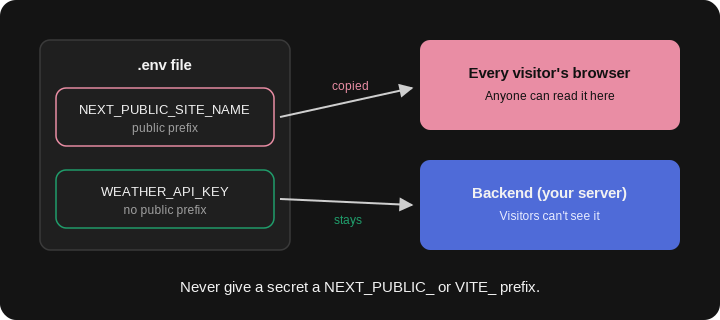
Sometimes your page can’t read a variable. Then the AI can try to “fix” it: it adds NEXT_PUBLIC_ to the name. Never accept that for a secret. Instead, ask your AI to use the secret only in backend code.
Mistake 3: Missing in production
The app works on your laptop and breaks in production. The value is undefined, which means “nothing here”. You didn’t add the variable on your hosting platform.
Mistake 4: The old value doesn’t go away
You changed .env, but nothing changed in the app. The process got its values when it started. Stop your app (Ctrl+C in the terminal). Then start it again.
In short: never put secrets in code or in
NEXT_PUBLIC_orVITE_variables. Add every variable to production, and restart after changes.
What good looks like
- Secrets are only in
.envand on your hosting platform. They are never in code. .envis in.gitignore. A.env.exampleshows the names.- Only backend code uses secrets. No secret has a
NEXT_PUBLIC_orVITE_prefix. - Your laptop and production use different keys, if the service allows it. If one key leaks, the other key is still safe.
- The app checks that settings exist. If a setting is missing, the app stops with a clear message:
const apiKey = process.env.WEATHER_API_KEY;
if (!apiKey) {
  throw new Error("WEATHER_API_KEY is missing. Add it to your .env file.");
}
In plain English: read the key. If it’s empty, stop the app at once with an error. The error says exactly what’s missing. That’s much easier to fix than a strange bug later.
In short: secrets live in
.envand on the hosting platform. Only the backend uses them, and the app checks that they exist.
Try it yourself
Experiment 1: See an environment variable
Your terminal already has environment variables. One of them holds your username. Open a terminal and type the command for your computer:
- Mac:
echo $USER - Windows (PowerShell):
echo $env:USERNAME
echo means “print this”. The terminal prints your username. Every process that you start from this terminal gets this variable too.
Experiment 2: Check your own project
Do this if you have an app project from your AI tool.
- Look for a
.envfile. Open it and read the names. - Open
.gitignore. Make sure that.envis on the list. - Look for secret names that start with
NEXT_PUBLIC_orVITE_. - Ask your AI to search your code for keys or passwords that are written directly in it.
Takeaways
Key terms
- API key: a secret code that proves a request comes from you.
- Configuration (config): settings that change between places, while the code stays the same.
- Secret: a setting that lets someone act as you, like an API key or a password.
- Environment variable: a named value that a process gets when it starts.
.envfile: a file on your laptop with one environment variable per line..gitignore: a list of files that git must never save or upload.
Red flags
- A key or password is written inside the code, between quotes.
.envis missing from.gitignore.- A secret’s name starts with
NEXT_PUBLIC_orVITE_. - “It works on my laptop”, but a value is
undefinedin production.
Ask your AI
- “Search my project for API keys, passwords or tokens written directly in the code. Move them into environment variables.”
- “Is .env listed in my .gitignore? Create a .env.example with the same names and no values.”
- “Which of my environment variables are sent to the browser? Are any of them secrets?”
Going deeper (optional, for readers who want more detail)
Values are always text. Environment variables are text (strings), even when they look like numbers. process.env.MAX_USERS gives you "10", not 10. And "false" is text that isn’t empty. So if (process.env.FEATURE_ON) is true, even when the value is "false". Change values to the right type on purpose, for example with Number(...) or === "true".
Processes get a copy of their parent’s environment. When one process starts another process, the new process gets a copy of the first one’s environment variables. That’s why a variable that you set in your terminal reaches the app that you start from it. If your app changes process.env, it changes only the copy in that process.
Setting a variable for one command. On Mac and Linux, you can write WEATHER_API_KEY=abc npm run dev. The variable exists only for that one command.
Plain Node.js and .env. Next.js and Vite read .env files for you. Plain Node.js doesn’t do it automatically. Since version 20.6.0, it can do it with a flag (an extra option on the command): node --env-file=.env app.js. Older projects often use a package called dotenv for the same job. A package is code that other people wrote for you to use.
Several .env files. Next.js reads several files, in a set order. For example, .env.local is for values only on your computer. .env.development and .env.production are for each mode. The Next.js documentation lists the full order. Files that end in .local must always be in .gitignore.
Public variables are fixed when the app is built. Before Next.js runs your app, it builds it (prepares the code to run). During the build, Next.js replaces NEXT_PUBLIC_ variables with their values. After the build, a change to the variable does nothing until you build again.
Secrets on hosting platforms. When this lesson was written, Vercel let you mark an environment variable as a Secret. Then nobody can read its value in the dashboard after you save it. Vercel has renamed this option before, so look for “Secret” or “Sensitive”.
References (6)
- Process: process.env: Node.js docs. How a backend reads environment variables with
process.env, and that changes to it stay inside that one process. - Command-line API: —env-file: Node.js docs. Node.js can load a
.envfile itself with--env-file, added in version 20.6.0. - How to use environment variables in Next.js: Next.js docs. Next.js loads
.envfiles automatically,NEXT_PUBLIC_variables are sent to the browser and frozen at build time, the file load order, and that the default project template adds.envfiles to.gitignore. - Env Variables and Modes: Vite docs. Vite loads
.envfiles automatically and sendsVITE_variables to the browser. - Environment variables: Vercel docs. The Environment Variables settings page, changes applying only to new deploys, and Secret values that can’t be read after saving.
- gitignore: Git docs. How
.gitignoreworks, and that files git already saved are not affected.