Level 3 · Shipping
It only breaks in production. How do you find out why?
- Debugging method
- Reproducing bugs
- Reading logs
- Narrowing down
- git bisect
- Hypotheses
- Regression tests
- Rollbacks
It only breaks in production. How do you find out why?
Before you start This lesson uses a few words from earlier lessons:
- Logs: messages your app writes while it runs, including errors, that you read on your hosting platform. (Your app was down for six hours and nobody noticed)
- Environment variables: settings and secrets given to your app from outside the code, which can differ between your laptop and production. (Your app’s secrets don’t belong in your code. Here’s where they go)
- Commit: a save point in Git, with a short ID called a hash. (The AI broke your working app. Here’s your undo button)
- Automated test: code that checks your app still does what it should, every time you run it. (The AI fixed one bug and quietly broke three others)
Three fixes later, it’s worse
Your shop app has been live for a month. On Tuesday morning, a customer writes: “I can’t check out. It says ‘Something went wrong’.”
You try it on your laptop. Checkout works. You try it on the live site with your own account. It works there too. But two more customers send the same message.
You copy the error from your logs, paste it into your AI tool and ask for a fix. You deploy the fix. More emails arrive. You ask again and deploy a second fix, then a third. Now checkout still fails for those customers. And the order confirmation email has stopped working for everyone.
“It works on my machine, but not in production” is one of the most common situations in software. The real problem here is not the bug. The problem is the method: guessing. This lesson gives you a better method.
Why production is different
Your code is the same on your laptop and in production. But everything around the code is different. When a bug appears only in production, the cause is almost always one of these differences:
| Difference | On your laptop | In production |
|---|---|---|
| Settings | Your .env file |
The platform’s environment variables, which may be missing, old or different |
| Data | A few test accounts you made yourself | Thousands of real records, including old, unusual and incomplete ones |
| Many users at once | One person: you | Many requests at the same moment |
| Saved copies | New files every time | Old pages and files kept by the CDN or the browser |
Let’s look at each difference.
Settings. A missing or wrong environment variable is the most common cause. For example, your laptop has PAYMENT_MODE=test, and production has no value. So the code takes a path that you never tried.
Data. Your test accounts are perfect, because you created them yesterday with the newest version of the app. Real data is messier:
- Accounts created a year ago may not have a field that you added later.
- Names contain emoji or apostrophes.
- Somebody has 4,000 items in their cart.
Code that works on clean data can break on real data.
Many users at once. On your laptop, requests arrive one at a time. In production, two requests can arrive at the same moment, and both can change the same record. When a program does many things at the same time, this is called concurrency. Bugs caused by concurrency are hard to see, because they depend on timing.
Go deeper: A customer got charged twice. How? (Level 4) covers bugs caused by two requests running at the same time.
Saved copies. A cache is a saved copy of something, kept so that it loads faster next time. A CDN is a group of servers in many places that keep copies of your files. Your CDN and your visitors’ browsers keep cached copies of pages and JavaScript files. So after a deploy, some users may still run the old frontend with your new backend.
Go deeper: Fast, but showing yesterday’s data (Level 4) explains caches and how to clear them.
There are other differences too: a different Node.js version, a server clock in another time zone, or a slow outside service. The rule is always the same: find what is different.
The mental model: work like a doctor
A good doctor doesn’t give random medicine until the patient feels better. A good doctor follows a method. The doctor listens to the symptoms, runs tests and decides on a diagnosis. Then the doctor gives a treatment and checks that it worked.
Debugging is the same. Here is the method, step by step:
- Stop the damage. If users are blocked, go back to the last working version first.
- Read the logs. Find the exact error, the time and the request that caused it.
- Reproduce it. Make the bug happen again, on purpose, in a place where you can study it.
- Narrow it down. Find the smallest piece of code, data or change that causes it.
- Form a hypothesis. Write one sentence that explains the cause. Then test it.
- Fix the cause. Make the smallest change that fixes it.
- Add a test. Make sure that this exact bug can never come back silently.
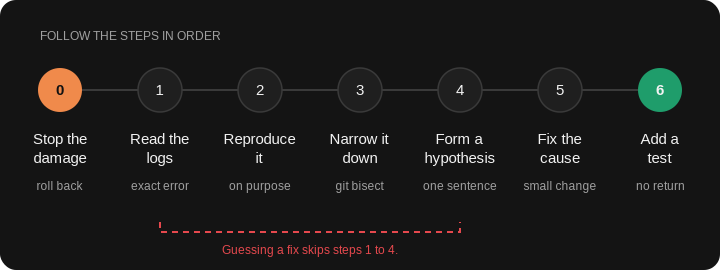
Where the comparison stops working: a doctor can’t undo yesterday. You can. With Git and your hosting platform, you can go back to a working version in seconds. That is why step 0 exists.
How it goes wrong
Mistake 1: Guessing in production
Some people paste an error into an AI tool and deploy whatever comes back. This skips steps 1 to 4. The AI sees one error message. It doesn’t see your data, settings or logs, so it guesses too.
If the bug disappears, you don’t know which change fixed it. If it doesn’t, you added code that can break something else, like the confirmation email in the story.
Mistake 2: Debugging on your real users
Some people debug in a loop. They add console.log lines, deploy, wait for a customer to hit the bug, and then start again. Every loop is a deploy to real users.
It gets worse. These quick log lines often print whole objects: user records, request bodies, tokens. That puts personal data and secrets into your logs, where many people and tools can read them.
Mistake 3: “Fixed” without proof
You changed something, and the errors stopped. But you never made the bug happen on purpose. So you can’t prove that your change fixed it. Maybe the one customer with the strange data stopped trying. The bug comes back next month, and you have forgotten everything about it.
Mistake 4: Hiding the symptom
The AI suggests that you put the failing code inside try/catch and ignore the error. The red error disappears from the logs. The checkout still doesn’t work, but now nothing tells you. Before, the bug made an error that you could see. Now it fails without any sign.
What good looks like
Let’s solve the checkout bug with the method.
Step 0: Stop the damage
Your three guessed fixes made things worse. So go back to the version from before them. To make an earlier, working version live again is called a rollback.
On most hosting platforms, a rollback takes one click. Vercel calls it “Instant Rollback”. On Vercel’s free Hobby plan, you can roll back only to the deployment just before the current one. You can also use git revert on the bad commits. This command makes a new commit that undoes an old one.
Now only the original bug is left, and you can investigate without pressure.
Step 1: Read the logs
Open your platform’s logs. Filter by the time of the first customer email. You find this:
2025-03-04T09:12:44Z ERROR POST /api/checkout 500
  userId=8812 requestId=req_7f3a
  TypeError: Cannot read properties of null (reading 'country')
    at calculateShipping (src/checkout/shipping.js:14:31)
In plain English:
- Line 1: at 09:12 (UTC time), a request to the checkout route failed with a 500 error.
- Line 2: the request came from user 8812. The request ID is a label that your app gave this one request. With it, you can find every log line that the request produced.
- Line 3: the error. The code tried to read
countryfrom something that wasnull.nullmeans “empty, nothing here”. - Line 4: the first line from your own code:
shipping.js, line 14.
Now you know more than any guess could tell you. The crash is in shipping, and something that the code expected is empty.
Step 2: Reproduce it
Look up user 8812 in your database. This user created the account last year, and the address column is empty. Your app started to ask for an address only in January. Every one of your test accounts has an address.
Now make the bug happen on purpose, away from real users. On your laptop or in your staging environment, create an account with no address. Try to check out. It crashes with the same error. You reproduced the bug.
Never copy real customer data to your laptop to do this. Copy the shape of the problem (an empty address), not the person.
Go deeper: Why you should never test on your real users (Level 3) explains staging environments.
Step 3: Narrow it down
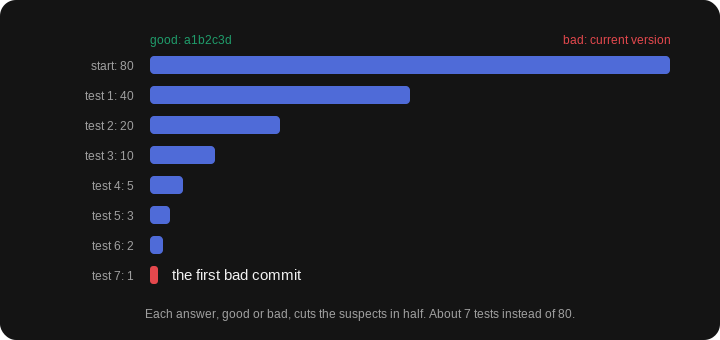
In this story, you already found the line. But often the logs don’t point so clearly. Then the question is: which change broke it? Maybe the app worked last week, and there are 80 new commits since then. Git can find the commit that broke it with git bisect:
git bisect start
git bisect bad              # the current version has the bug
git bisect good a1b2c3d     # this older commit did not
# Git switches to a commit in the middle. Test it, then type:
git bisect good             # or: git bisect bad
git bisect reset            # when done, return to where you started
In plain English:
- Lines 1–3: start a search. Tell Git that the current version is broken and that commit
a1b2c3dfrom last week worked. - Lines 4–5: Git goes to a commit halfway between them. You test the app there and answer “good” or “bad”. Git then removes the half that can’t contain the bug. It goes to the middle of the other half.
- Line 6: when Git prints “is the first bad commit”, you are done.
resettakes you back to your latest code.
This is a binary search: each answer cuts the suspects in half. 80 commits become 40, 20, 10, 5, 3, 2, 1. That is about seven tests instead of eighty. Then you can see exactly what that one commit changed with git show and the commit’s hash.
Step 4: Form a hypothesis
Write the cause in one sentence that could be proven wrong:
“Checkout fails for accounts with no saved address, because
calculateShippingreadsaddress.countrywithout checking that the address exists.”
A good hypothesis makes a prediction. Here, a new account without an address will fail. The same account will work after you add an address. Try both.
If one of the predictions is wrong, go back to the logs. You still made progress, because now you know one thing that is not the cause.
Step 5: Fix the cause
Now the fix is small and clear:
app.post("/api/checkout", requireLogin, async (req, res) => {
  const user = await db.user.findUnique({ where: { id: req.user.id } });
  if (!user.address) {
    return res.status(400).json({ error: "Please add a delivery address first." });
  }
  const shipping = calculateShipping(user.address);
  // ...continue with the order
});
In plain English:
- Line 2: load the logged-in user from the database.
- Lines 3–5: if the user has no address, stop and tell them clearly what to do. A 400 status means “the server can’t handle the request as it is”. That is true here. It is not a server crash.
- Line 6: only then calculate shipping, because now you know that the address exists.
Note what the fix doesn’t do. It doesn’t hide the error with try/catch. It handles the real situation and tells the user what to do next.
Step 6: Add a test
Write a test that does exactly what the customer did:
test("checkout without an address asks for one instead of crashing", async () => {
  const user = await createTestUser({ address: null });
  const res = await checkoutAs(user);
  expect(res.status).toBe(400);
  expect(res.body.error).toMatch(/address/);
});
In plain English: create a test user with no address, and try to check out as that user. Expect a clear 400 reply that mentions the address. createTestUser and checkoutAs are small helper functions in your own test files. They are not part of a library (a package of ready-made code).
Run the test before your fix and see it fail. Run it after the fix and see it pass. A test that fails first proves that it really checks the bug.
A test that stops an old bug from coming back is a regression test. Maybe an AI change brings the bug back in six months. Then your checks find it before a customer does.
Go deeper: Stop broken code before it ever goes live (Level 3) shows how to run these tests on every push.
Use AI the right way
AI is very useful inside this method. But it can’t replace the method. Give it the evidence, and ask it to think, not to write code:
- Paste the full log lines, not only the last error.
- Before any fix, ask for possible causes and a way to test each one.
- When you have a confirmed cause, ask for the smallest fix and a test.
Test your own app
You need an app of your own for this part. No app yet? Start with Your first app in an afternoon, with an AI doing the typing. Built it in an AI app builder? Ask its AI to do each step below for you, or to add the missing part first (for example, a login).
Practice before the real emergency. Each drill takes about five minutes.
- Find your logs. Open your hosting platform’s logs page. Visit a page of your app, and find that request in the logs. Then cause an error on purpose and find it too. For example, visit an API route with a bad ID.
- Find your rollback button. Open your list of deploys. Find where you would make an older deploy live again. Don’t press it. Only learn where it is.
- Compare your settings. List every variable in your
.envfile. Check that each one exists on your platform’s environment variables page for production. - Try
git bisectonce. In a practice project, make eight small commits. Put a mistake in commit five on purpose. Then usegit bisectto find it. Count how many steps it took.
Takeaways
Key terms
- Reproduce: make a bug happen again on purpose, in a place where you can study it
- Hypothesis: a one-sentence explanation of the cause that makes a prediction you can test
git bisect: a Git command that finds the commit that caused a bug, because it cuts the suspects in half again and again- Rollback: making an earlier, working version live again
- Regression test: a test that makes sure an old bug can’t come back
Which step did you skip?
- You deployed a fix without reading the full logs → step 1
- You never made the bug happen on purpose → step 2
- You don’t know which change broke it → step 3, try
git bisect - You can’t say the cause in one sentence → step 4
- The fix hides the error instead of handling the situation → step 5
- Nothing stops the bug from coming back → step 6
- Users were blocked while you investigated → step 0, roll back first
Ask your AI
- “Here are the full log lines for this error. Don’t write a fix yet. List the three most likely causes, and for each one, tell me how I can test whether it’s true.”
- “This works on my laptop but fails in production. List every difference between the two environments that could cause this error: settings, data, many users at once, caching, versions.”
- “Write a test that reproduces this bug. It should fail with the current code. Then suggest the smallest fix that makes it pass.”
Going deeper (optional, for readers who want more detail)
Let Git run the tests for you. If a command can check for the bug, git bisect run does the whole search by itself. For example, git bisect run npm test runs your tests at each step. The command’s exit code (a number that a command returns when it ends) gives Git the answer:
- 0 means good.
- 125 means “this commit can’t be tested, skip it”.
- Other codes from 1 to 127 mean bad.
Stack traces from minified code. Before your frontend JavaScript goes live, the build makes it smaller. It removes spaces and makes names shorter. This is called minifying. A browser error from production may then point to main.4f2a.js:1:48213, which is useless.
Source maps are files that connect the minified code back to your original files and lines. Error-tracking tools such as Sentry use them to show readable stack traces. Many teams upload source maps to their error tracker but don’t make them public.
Request IDs across services. Sometimes one user action goes through several parts of your system. Examples are your API, a background job (work that runs later, outside the request) or a webhook. Pass the same request ID along, and put it in every log line. Then one search shows the whole story. People often call this a correlation ID.
Bugs that disappear when you look. Some bugs, usually concurrency bugs, disappear when you add logging. They can also disappear when you run a debugger (a tool that pauses code so you can look inside). This happens because logging and debuggers change the timing. Programmers call these bugs “Heisenbugs” as a joke. For these bugs, logs that are always on are more useful than debugging tools that you add later.
Feature flags. A feature flag is a setting that turns a feature on or off without a deploy. If a new feature causes problems, you can switch it off for everyone in seconds. This is faster than a rollback, and your other changes stay live.
Write it down. After a serious bug, write a few lines. Write what happened, how you found it, what fixed it and what will stop it from happening again. Teams call this a postmortem. Good postmortems focus on the system, not on blame for a person.
References (3)
- git-bisect: Git documentation. How
git bisectuses a binary search between a good and a bad commit, its commands, and the exit codes used bygit bisect run. - Performing an Instant Rollback on a Deployment: Vercel documentation. Making an earlier production deployment live again from the dashboard, and Hobby plans rolling back only to the previous deployment.
- TypeError: “x” is (not) “y”: MDN. The form of the “Cannot read properties of … (reading ‘x’)” error message in Node.js and Chrome.