Level 3 · Shipping
Sign-up takes 10 seconds because of one email
Sign-up takes 10 seconds because of one email
Before you start This lesson uses a few words from earlier lessons:
- Request and response: the browser asks your server for something, and the server answers. The user waits until the answer arrives. (Every website is a conversation. Here’s how it goes)
- Serverless function: backend code that your hosting platform starts when a request arrives and stops afterwards. (From your laptop to a real website in one push)
- Webhook: a message that another service sends to your server when something happens. (Free stuff with one fake “payment succeeded” message)
- Idempotent: if you do it twice, the effect is the same as if you do it once. (The app said “Saved!”. The note was never saved)
The spinner that never stops
You tell your AI to finish the sign-up feature. When a person creates an account, the app must:
- Save the new user in the database
- Send a welcome email
- Make a profile picture from the user’s initials
- Ask an AI model to write a personal “getting started” tip
The AI writes the code, the code works, and you launch. Then people start to complain. After they click Create account, they look at a spinning circle for 10 seconds. Some people stop waiting and click again. Then they get an error: “This email is already registered.” The first click did work, but they never saw the result.
One morning, the email service has a problem. Now sign-up fails completely, for everyone. Users get a timeout error, which means that the server waited too long and stopped. The app saved the accounts, but the users see an error and leave.
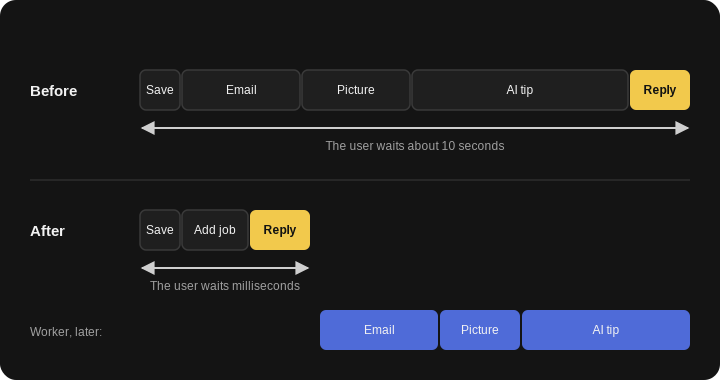
Saving the user takes a few milliseconds (thousandths of a second). All the other steps are slow work, and the user does not need to wait for them. This lesson shows how to move that work away from the user.
The mental model: a ticket rail in a kitchen
Think of a busy restaurant. A waiter takes your order, writes it on a ticket, and clips the ticket to a rail in the kitchen. Then the waiter comes back and says: “Your food will be ready soon.” The cooks take tickets from the rail one by one and cook.
The waiter never stands at the stove for 20 minutes while other tables wait. Taking orders and cooking are separate jobs.
Your app can work in the same way:
- A background job is a piece of work that happens outside the user’s request. “Send the welcome email to user 42” is a job.
- A queue is the ticket rail. It is a list of jobs that wait to be done. A database or a queue service usually stores it, so the list stays after a restart.
- A worker is the cook. It is separate code that takes jobs from the queue and does them.
Now the sign-up route does only three things: it saves the user, adds a job to the queue, and replies “Welcome!”. Your user waits milliseconds, not seconds. The email still goes out, a moment later.
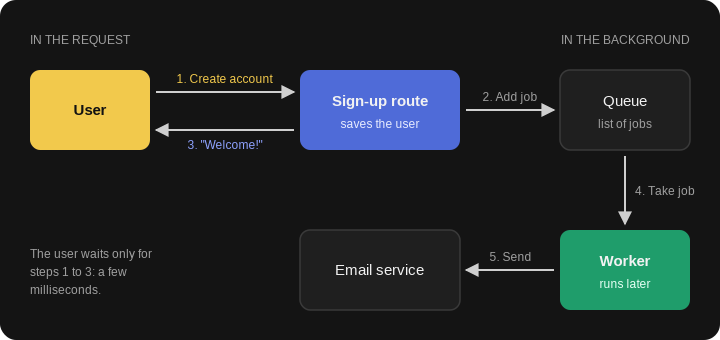
Where the comparison stops working: a restaurant ticket is either cooked or not cooked. In software, a worker can crash halfway through a job. Also, the same job can run twice. Good background jobs are ready for both problems, as you will see below.
What belongs in the background?
Ask one question: does the user need the result before the next screen?
| Work | Needs the result immediately? | Where it belongs |
|---|---|---|
| Checking a password at login | Yes: are they logged in or not? | In the request |
| Saving a new order | Yes: the order must exist | In the request |
| Sending a welcome or receipt email | No | Background job |
| Resizing an uploaded image | Usually no | Background job |
| A long AI task, like a summary of a document | No, if you show “working on it” | Background job |
| Making a PDF report | No | Background job |
| The slow work after a webhook arrives | No: the sender wants a fast reply | Background job |
How it goes wrong
Bug 1: Everything inside the request
Here is the sign-up route that the AI wrote first:
app.post("/api/signup", async (req, res) => {
  const user = await createUser(req.body);
  await sendWelcomeEmail(user);          // 1–3 seconds
  await generateAvatar(user);            // 2 seconds
  await writeGettingStartedTip(user);    // 3–5 seconds with an AI model
  res.json({ ok: true });
});
In plain English:
- Line 2: save the new user. This step is fast.
- Lines 3–5: wait for an email service, then an image step, then an AI model. Each
awaitmeans “stop here until this step finishes”. - Line 6: reply to the user. This happens only now.
The user waits for the total time of all the steps. Also, each slow step can fail. If the email service is down, sendWelcomeEmail throws an error and line 6 never runs. The user sees a failure, but the app did create the account.
Bug 2: The function time limit
On a hosting platform, this route runs as a serverless function. Each function has a maximum duration. If the function runs longer, the platform stops it and the user gets an error. Vercel shows this error as a 504 status with the code FUNCTION_INVOCATION_TIMEOUT.
The limits depend on the platform and the plan, and they change. At the time of writing:
- Vercel: functions can run for 5 minutes by default. Paid plans can raise this limit.
- Netlify: normal functions stop after 60 seconds. Netlify’s special background functions can run for up to 15 minutes.
Five minutes can seem like a long time. But a user can upload a long video, or an AI model can be slow on a busy day. Also, no user should look at a spinner for even one of those minutes.
Bug 3: “Fire and forget”
You tell the AI to make sign-up faster. A common answer is to remove the await:
sendWelcomeEmail(user); // no await: don't wait for it
res.json({ ok: true });
Now the reply goes out at once. On your laptop, the email still arrives, because your server continues to run. On a serverless platform, the email can fail to arrive. After the response goes out, the platform can stop or pause the function, and the unfinished email can stop halfway.
If the email fails, the app tells nobody. There is no retry and often no log. Emails go missing, a few at a time, and you never find the cause.
Bug 4: Jobs that run twice
Most queues promise to deliver each job at least once. That sounds good, but read it carefully: at least. A worker can crash after it sends the email but before it tells the queue “done”. Then the queue gives the job to another worker, and the email goes out twice. For an email, this is annoying. For “charge the customer” or “add 100 credits”, it is a real bug.
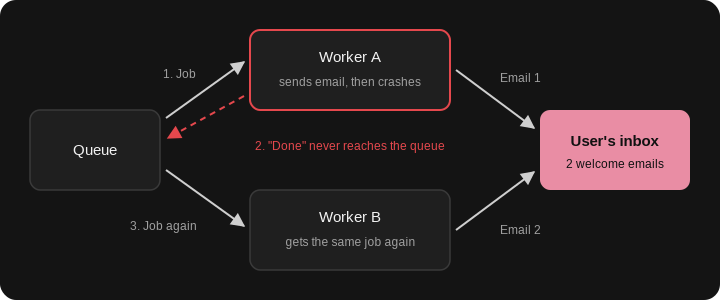
You saw the same problem with webhooks. The sender retries, so your code must not do the work twice.
What good looks like
Fix 1: Reply first, then do small work after
For small tasks that are not important, frameworks can now run code after the response goes out. A framework is a set of ready-made code that you build your app on, such as Next.js. The framework keeps the function alive until the task finishes. In Next.js, this is the after() function:
import { after } from "next/server";

export async function POST(request) {
  const user = await createUser(await request.json());
  after(() => recordSignupAnalytics(user.id));
  return Response.json({ ok: true });
}
In plain English:
- Line 4: save the user. The user needs this result, so we wait.
- Line 5: schedule a task that runs after the response goes out. On Vercel, this uses a feature named
waitUntil. It keeps the function alive until the task ends. - Line 6: reply immediately.
This is good for analytics (records of what users do in your app) or a log line. But the task still counts toward the function’s time limit. Also, if the task fails, it is gone, because there is no queue and no retry. For an email that the user waits for, use Fix 2.
Fix 2: A real queue and a worker
For work that must happen, use a queue. The exact code depends on the tool, but the shape is always the same. First, the route:
app.post("/api/signup", async (req, res) => {
  const user = await createUser(req.body);
  await jobs.enqueue("send-welcome-email", { userId: user.id });
  res.json({ ok: true });
});
The route saves the user, adds a job named send-welcome-email to the queue, and replies. Adding a job takes milliseconds.
Then, in a separate place, the worker:
jobs.handle("send-welcome-email", async ({ userId }) => {
  const user = await db.user.findUnique({ where: { id: userId } });
  await sendWelcomeEmail(user);
});
The worker gets the job, loads the user again from the database, and sends the email. If the email fails, the queue tries again later.
jobs.enqueue and jobs.handle are example names. Each tool has its own names, but all tools have “add a job” and “handle a job”.
The job contains only the user ID, not the full user. The worker can run seconds or hours later. Before then, the user can change their email address or delete their account. The worker loads new data from the database, so it does not send to an old address.
Fix 3: Make every job safe to run twice
Jobs can run more than once. So each job must check if its work is already done:
jobs.handle("send-welcome-email", async ({ userId }) => {
  const user = await db.user.findUnique({ where: { id: userId } });
  if (!user || user.welcomeEmailSentAt) return; // gone, or already done
  await sendWelcomeEmail(user);
  await db.user.update({ where: { id: userId }, data: { welcomeEmailSentAt: new Date() } });
});
In plain English:
- Line 3: if the user does not exist now, or the email already went out, stop.
- Lines 4–5: send the email, then record the time of the email.
There is still a small gap. If a crash happens exactly between lines 4 and 5, the retry sends the email again. For an email, this risk is acceptable. For payments, you need stronger tools.
Go deeper: The payment timed out. Did it go through? (Level 3) shows how idempotency keys close this gap with payment services.
Fix 4: Tell the user what is happening
Sometimes the result is something the user wants, like a converted video or a report that an AI writes. Do not make the user guess. Save a status with the work: pending, processing, done or failed. The page shows “We’re working on it. We’ll email you when it’s ready.” Then the page changes when the status changes.
Go deeper: How chat apps update without you refreshing (Level 4) shows how the page can find out that the job is finished.
Choosing a tool
You do not need to build a queue yourself. Here are common options, from the simplest to the most powerful:
| Option | Good for | Be careful about |
|---|---|---|
after() in Next.js, waitUntil on Vercel |
Small tasks after the response | No retries. Counts toward the time limit |
| Netlify Background Functions | Work up to 15 minutes on Netlify | The caller only gets a “started” reply (status 202), not the result |
| Managed job services, such as Inngest, Trigger.dev, Upstash QStash, or Vercel’s Queues and Workflows | Retries, schedules and long jobs with many steps, without a server of your own | Another service to learn and pay for |
| Your own worker process with a queue library, such as BullMQ with Redis (a fast data store) | Full control on a server that always runs | You run and watch the worker yourself |
Features and limits change often. Read the current docs before you choose.
Test your own app
You need an app of your own for this part. No app yet? Start with Your first app in an afternoon, with an AI doing the typing. Built it in an AI app builder? Ask its AI to do each step below for you, or to add the missing part first (for example, a login).
- Time your slowest routes. Open developer tools and click the Network tab. Then sign up, upload a file or use an AI feature. Look at the Time column. Examine each request that takes more than a second.
- List what each slow route waits for. For each call, decide: does the user need the result before the next screen? Ask your AI: “For this route, list every call to another service and how long each might take.”
- Break a service on purpose. In your staging environment (the test copy of your app), set the email service’s API key to a wrong value. Then sign up. Sign-up must still work. Only the email must fail, and the failure must show in your logs or job dashboard.
- Check your function durations. Your hosting platform shows how long each function ran. Compare your slowest functions with the time limit of your plan.
Takeaways
Key terms
- Background job: work done outside the user’s request, such as sending an email
- Queue: a stored list of jobs that wait to be done
- Worker: code that takes jobs from the queue and does them
- At least once: a promise that a job will run, possibly more than once
- Maximum duration: the longest time a serverless function can run before the platform stops it
Red flags in AI-written code
- A route
awaits an email service, an AI model or image processing before it replies - A call to slow work with the
awaitremoved “to make it faster”, on a serverless platform - A job that contains a full user object, not an ID
- A job that sends money, credits or messages with no check for “already done”
- A long task with no status that the user can see
Ask your AI
- “For every API route in my app, list the slow work it waits for before replying. Say which parts could move to a background job.”
- “My app runs on [Vercel / Netlify / my own server]. What’s the simplest reliable way to run background jobs with retries here?”
- “Make this job safe to run twice. Show me what happens if the worker crashes halfway through.”
Going deeper (optional, for readers who want more detail)
Retries and backoff. Most job tools retry failed jobs automatically. They wait longer before each new attempt (this is “backoff”). For example, Netlify’s background functions retry a failed run after one minute, and again two minutes later.
After the last attempt, many tools move the job to a dead-letter queue. This is a list of failed jobs that a person can examine and run again. Check that list regularly, or set an alert on it.
Saving and enqueuing are two separate writes. Your route can save the user, but the queue can be down. Then the user exists, but the welcome job is not in the queue. If you enqueue first and the save fails, a job exists for a user who does not exist.
This problem (“two writes, and only one succeeds”) has a standard solution. Write the job into your own database in the same transaction as the user. A transaction is a group of database writes that all succeed or all fail together. Then a separate process sends the job to the queue.
Go deeper: The order was saved, but the email never went out (Level 5) explains this pattern.
Limit how many jobs run at the same time. Imagine that 5,000 users sign up in one minute. If a worker runs every job at once, it will hit the rate limit of your email provider. Most tools let you set a concurrency limit. For example: a maximum of 10 jobs of this type at the same time.
Scheduled jobs. Some work must run on a timetable, such as a cleanup every night or a summary email every week. This work uses cron jobs: jobs that a schedule starts. Vercel’s docs warn that a cron run can be missed or can run twice, and that Vercel does not retry a failed run. So the same “safe to run twice” rule applies.
Durable workflows. Some tools let a job pause for hours or days. Then the job continues from where it stopped, even after a deploy. For example: “Send a reminder three days after sign-up, unless the user already finished setup.” Vercel Workflows and Inngest work in this way.
References (6)
- Configuring Maximum Duration for Vercel Functions: Vercel documentation. The default 5-minute (300-second) function limit and higher limits on paid plans.
- FUNCTION_INVOCATION_TIMEOUT: Vercel documentation. The
504error shown when a function runs past its limit. - Running background workers on Vercel: Vercel guide.
waitUntilhaving no retries, Vercel Queues delivering each message at least once, Workflows, and cron runs that can be missed or duplicated. - Configuration for functions: Netlify documentation. The 60-second limit for normal functions and the 15-minute limit for background functions.
- Background Functions overview: Netlify documentation. The immediate
202reply and the retries after one and two minutes. - after: Next.js documentation. Running work after the response, its link to
waitUntil, and that it became stable in version 15.1.