Level 1 · Foundations
Take a web page apart and see what's inside
Take a web page apart and see what’s inside
Before you start This lesson uses words from earlier lessons.
- Request and response: a request is the message your browser sends. A response is the answer from the server. (From You pressed Enter. What happened in the next second?)
- Developer tools: hidden panels in your browser that show what it does. Open them with F12 on Windows, or Cmd+Option+I on Mac. (From the same lesson.)
- Body: the main content of a message, like a whole web page inside a response. (From Every website is a conversation. Here’s how it goes)
- Status code: the three-digit number in a response that says how it went. Examples are
200and404. (From the same lesson.)
Can you trust a screenshot?
A friend sends you a screenshot of a famous news website. The headline says: “All schools closed for a whole year!”
Is it real?
Maybe not. Anyone with a laptop can change the words on any web page, on their own screen, in about ten seconds. No hacking. No special software. Only tools that come with desktop browsers. Then they take a screenshot.
How is that possible? Because a web page isn’t a picture. When the server answers your request, it doesn’t send an image of the page. It sends instructions, and your browser builds the page from them, on your device. You can change anything that your browser built.
By the end of this lesson, you’ll know what those instructions look like. And you’ll try the headline trick yourself.
In short: a web page isn’t a picture. Your browser builds it from instructions that the server sends.
HTML: what’s on the page
The first set of instructions is called HTML, short for HyperText Markup Language. HTML says what is on the page: headings, paragraphs, pictures, buttons, links.
Here’s a tiny piece of HTML for a cat fan club page:
<h1>The Cat Club</h1>
<p>We share a new cat photo every day.</p>
<img src="/images/sleepy-cat.jpg" alt="A sleepy cat">
<button>Join the club</button>
Each piece inside angle brackets, like <h1>, is called a tag. Tags label each part of the page, so the browser knows what it is:
| Tag | What it marks |
|---|---|
<h1> |
The main heading: “The Cat Club”. </h1>, with a slash, marks where it ends. |
<p> |
A paragraph of text. |
<img> |
A picture. src says where to find the picture file. alt describes the picture in words, for people who can’t see it. |
<button> |
A button with the words “Join the club”. |
That’s the “markup” in HyperText Markup Language: labels around content.
HTML alone gives you all the content, but it looks plain. You get black text on a white background, with everything stacked down the left side.
In short: HTML says what’s on the page. Tags like
<h1>and<p>label each part.
CSS: how it looks
The second set of instructions is called CSS, short for Cascading Style Sheets. CSS says how things look: colors, sizes, fonts, spacing, and where things sit on the screen.
h1 {
  color: purple;
  font-size: 40px;
}
button {
  background-color: orange;
}
Each block here is called a CSS rule. A rule picks some parts of the page. Then it says how they should look:
-
h1 { ... }picks every<h1>heading. Inside the curly brackets, it makes the text purple and 40 pixels tall. (Pixels are the tiny dots that make up your screen.) -
button { ... }picks every button, and gives it an orange background.
One CSS file can style a whole website. If you change one rule, every page that uses it changes. That’s how a site keeps the same look on every page.
In short: CSS says how the page looks. Each CSS rule picks parts of the page and gives them colors, sizes and positions.
JavaScript: what it does
HTML and CSS make a page you can look at. But what happens when you click “Join the club”? Without more instructions, nothing.
The third kind of instructions is JavaScript. It’s a programming language: a language for instructions that a computer runs. JavaScript runs inside your browser. It makes the page do things: react to clicks, show new messages, play games, load more videos when you scroll.
const button = document.querySelector("button");
button.addEventListener("click", () => {
  button.textContent = "Welcome to the club!";
});
In plain English:
- Line 1: find the button on the page, and call it
button. - Line 2: when someone clicks it…
- Line 3: …change its words to “Welcome to the club!”
An event is something that happens on the page, like a click, a key press or a scroll. JavaScript does a lot of its work this way: it waits for events and reacts to them.
In short: JavaScript makes the page do things. It waits for events, like clicks, and reacts to them.
The three together
Think of a house:
-
HTML is the walls, rooms and doors. It decides what’s there.
-
CSS is the paint, wallpaper and furniture. It decides how it looks.
-
JavaScript is the electricity. Press a switch, and something happens.
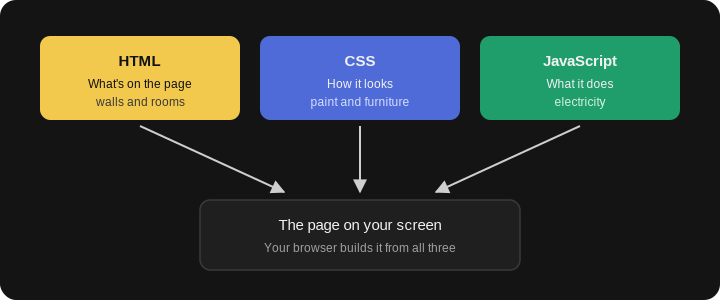
Where this comparison stops working: people build a house once. Your browser builds a web page again every time you open it. And each part arrives as a separate file. One file can fail to arrive while the others work. That’s why a page can show up with no colors. Or it can look fine but have buttons that do nothing.
You might hear about tools like React or Tailwind, especially if an AI builds your app. They are different ways to write web pages. But what reaches the browser is still HTML, CSS and JavaScript, plus files like images and fonts.
In short: HTML is what’s there, CSS is how it looks, JavaScript is what it does. Each one arrives as a separate file, and each one can fail on its own.
One page, many requests
So how do the CSS and JavaScript files reach your browser? The HTML asks for them.
Near the top of most HTML pages, you’ll find lines like these:
<link rel="stylesheet" href="/styles.css">
<script src="/app.js"></script>-
<link rel="stylesheet" ...>says: “the CSS for this page is in/styles.css.” -
<script src="...">says: “the JavaScript for this page is in/app.js.”
Here’s the whole process:
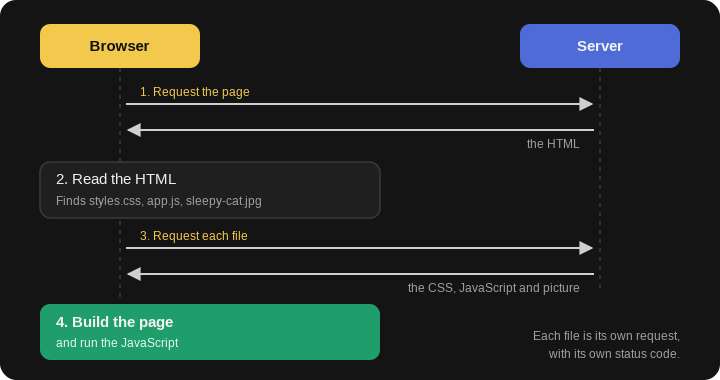
Each file is a separate request with its own response and its own status code. Some files even come from different servers, like fonts from a font service.
That’s why one page needs so many requests. In 2024, the typical desktop web page made 71 requests in total. That included 24 JavaScript files, 18 images and 8 CSS files. JavaScript became the most requested kind of file on the web, ahead of images.
In short: the HTML lists the other files that a page needs. The browser requests each one separately, so a typical page needs dozens of requests.
How it goes wrong
Each file arrives separately, so each one can fail on its own. Each failure looks different:
| What you see | What probably failed |
|---|---|
| Nothing at all, or an error page | The HTML request itself |
| All the words, but no colors and a messy layout | The CSS file |
| A small “broken picture” icon | One image (often a 404: wrong file name or path) |
| The page looks fine, but buttons do nothing | A JavaScript file |
| A completely blank white page | Often the JavaScript, in apps where JavaScript builds the page |
That last row needs an explanation. People build many apps with React, a tool that uses JavaScript to build the whole page. In these apps, the HTML from the server is almost empty. It looks something like this:
<body>
  <div id="root"></div>
  <script src="/app.js"></script>
</body>-
<div id="root"></div>is an empty box, namedroot. -
<script src="/app.js">loads the JavaScript of the app, as you saw above.
The JavaScript then builds the whole page inside that empty box. Sometimes the JavaScript doesn’t load, or it crashes (stops with an error). Then the box stays empty. You get a blank white page, even though the server answered 200 OK.
Go deeper: “This site can’t be reached”: what broke, and where? (Level 1) shows how to find the cause of blank pages and other errors.
In short: each file can fail on its own, and each failure looks different. In apps where JavaScript builds the page, a JavaScript failure can leave the page completely blank.
What good looks like
When a page looks wrong, don’t guess. Look. Two parts of developer tools show you what happened.
The Elements panel shows the page that your browser built, as it is now. This includes everything that JavaScript added or changed. You can see every tag. Click one to see its CSS rules.
The Console is a panel where JavaScript writes messages while it runs. When JavaScript crashes, the error shows up here, usually in red.
When a page looks broken, check these three places:
-
Network tab: did every file load? Look at the Status column for anything that isn’t
200. -
Console: are there red error messages?
-
Elements panel: is the content there at all? Is that empty
rootbox still empty?
Then tell your AI exactly what you found: “The page is blank. The Console shows this error: [paste it].” That’s much more useful than “my page doesn’t show up”.
In short: use the Network tab to check that every file loaded. Use the Console to read JavaScript errors. Use the Elements panel to see the page your browser built.
Try it yourself
You need a laptop or desktop computer with Chrome.
Experiment 1: Read the HTML of a page
- Open the Wikipedia article about cats:
en.wikipedia.org/wiki/Cat. - Press Ctrl+U on Windows, or Cmd+Option+U on Mac. A new tab opens with the HTML of the page, exactly as the server sent it.
- This HTML is called the page source. It’s long, so search it. Press Ctrl+F on Windows, or Cmd+F on Mac.
- Type
<h1. Somewhere after that tag is the word “Cat”: the big heading you saw on the page. - Now search for
<p>. Find one of these paragraphs on the page.
Experiment 2: The headline trick
- Open any news website.
- Right-click a headline and choose Inspect. The Elements panel opens, with the tag of that headline highlighted.
- In the Elements panel, double-click the words of the headline.
- Type something new, and press Enter.
The headline on your screen changes. Now reload the page. Your change is gone.
You only changed the copy that your browser built. The server of the website never knew. Remember that the next time someone sends you a screenshot of a web page.
Experiment 3: Count the files
- Open any big website.
- Open developer tools and the Network tab.
- Reload the page.
- Above the list, find the buttons Doc, CSS, JS and Img. Click each one. The list then shows only that kind of file.
How many CSS files does the page use? How many JavaScript files? Click All to see everything again.
Experiment 4: Switch JavaScript off
- Open developer tools.
- Press Ctrl+Shift+P on Windows, or Cmd+Shift+P on Mac.
- Type
javascript, choose Disable JavaScript, and press Enter. - Reload the page and try to use it.
What still works? What stopped working? Some sites look almost the same. Others become completely blank. JavaScript switches back on when you close developer tools.
Takeaways
Key terms
| Term | Meaning |
|---|---|
| HTML | The instructions that say what’s on a page |
| Tag | A label in HTML, like <h1> or <p>, that marks one part of the page |
| CSS | The instructions that say how a page looks |
| CSS rule | A piece of CSS that picks parts of the page and styles them |
| JavaScript | The programming language that makes pages do things |
| Event | Something that happens on a page, like a click, that JavaScript can react to |
| Page source | The HTML exactly as the server sent it |
| Elements panel | The part of developer tools that shows the page as your browser built it |
| Console | The part of developer tools where JavaScript messages and errors appear |
Which file broke?
| What you see | What it means |
|---|---|
| Words but no design | The CSS didn’t load. |
| Broken picture icon | One image is missing, often a 404. |
| Looks fine, but nothing reacts | A JavaScript problem. Check the Console. |
Blank white page, status 200 |
Often the JavaScript failed. Check the Console and the Network tab. |
Ask your AI
-
“Explain this HTML line by line, in simple words: [paste it].”
-
“My page loads, but [describe what’s wrong]. The Network tab shows [statuses], and the Console shows [paste errors]. Which file is the problem?”
-
“Which parts of the page in my app come from HTML, which from CSS, and which does JavaScript build?”
Going deeper (optional, for readers who want more detail)
The DOM. When the browser reads HTML, it builds a tree of objects in memory, one for each tag. This tree is called the DOM (Document Object Model). The Elements panel shows the DOM, not the original HTML. That’s why it can look different from the page source. JavaScript changes the DOM, but the page source never changes.
Server-side and client-side rendering. “Rendering” means building the page. In the React example, the browser builds the page. This is called client-side rendering. Frameworks (sets of ready-made tools for building apps) such as Next.js can also build the HTML on the server. Then the page source already contains the content. This is called server-side rendering. The content can appear sooner, and it still shows if JavaScript fails to load.
Why React pages go blank. The React documentation says what happens by default when an app throws an error while it renders. React removes the user interface of the app (everything you see and click) from the screen. Apps can add an error boundary to show a friendly message for the broken part instead.
What “Cascading” means. Several CSS rules can match the same part of the page. The “cascade” is the set of rules that browsers use to decide which CSS rule wins. It looks at things like how specific each rule is and which rule came last.
Tailwind. Tailwind is a way to write CSS with short names in your HTML, like text-purple-700. These names are called class names. A tool finds these names in your files. Then it makes a normal CSS file that the browser downloads.
References (8)
- Page Weight, Web Almanac 2024: HTTP Archive. The median desktop page makes 71 requests, including 24 JavaScript files, 18 images and 8 CSS files, and JavaScript overtook images as the most requested file type.
- Creating the content: MDN Web Docs. Writing a page’s content with HTML tags.
- Styling the content: MDN Web Docs. Changing how a page looks with CSS rules.
- Adding interactivity: MDN Web Docs. Using JavaScript to react to events like clicks.
- Chrome keyboard shortcuts: Google Chrome Help. Ctrl+U (Windows) or Cmd+Option+U (Mac) shows the HTML source of a page, and Ctrl+F or Cmd+F searches it.
- Network features reference: Chrome for Developers. Filtering the Network panel by Doc, CSS, JS and Img.
- Disable JavaScript: Chrome for Developers. Switching JavaScript off from the Command Menu.
- Component: catching rendering errors with an error boundary: React. By default, React removes an app’s UI from the screen when it throws an error while rendering.