Level 1 · Foundations
Your app restarted and all the likes vanished
Your app restarted and all the likes vanished
Before you start This lesson uses words from earlier lessons.
- Server: a computer that waits for requests and answers them. (You pressed Enter. What happened in the next second?)
- Backend: the part of your app that runs on the server. Users can’t see or change it. (A player scored 999,999 points by editing the page. How?)
- Database: a program that stores your app’s data safely, so it is still there tomorrow. (Your app forgot everyone’s messages overnight. Why?)
Where did my progress go?
You play a game on a laptop. You’ve played for an hour. You haven’t saved.
Then the battery dies.
You connect the charger and turn the laptop on again. The game is still there. You can open it. But the last hour of progress is gone.
Why did the computer keep the game, but lose your progress?
The answer is in the parts inside your computer. Every computer has them: your laptop, your phone, and the servers that run websites. When you build an app with AI, these parts explain some confusing problems:
- Data that disappears when your app restarts
- An app that stops when you close a window
- A computer that suddenly gets slow
This lesson explains the three main parts. It also explains what happens when you press Run.
In short: a computer keeps some things and forgets others. When you know which part does what, you understand why apps lose data or stop.
A computer is like a kitchen
This lesson uses a kitchen to explain the parts. Think of a cook who makes pancakes in a kitchen.
The kitchen has a cook who follows recipes. It has a worktop, where the cook does the work. And it has a cupboard, where food is kept for later.
A computer has a part for each of these. The next sections explain them one at a time.
In short: this lesson compares the computer to a kitchen with a cook, a worktop, a cupboard and recipes.
The cook: the CPU
A recipe is a list of steps: “crack two eggs, add milk, stir.” A recipe does nothing on its own. Somebody has to follow it.
In a computer, that somebody is the CPU. CPU is short for Central Processing Unit. It’s a chip inside your computer: a small, flat electronic part.
A program is also a list of steps, called instructions. The CPU reads one instruction and does it. Then it does the next one. Each instruction is tiny, like “add these two numbers” or “copy this number over there”.
So how can tiny steps make a game or a video call? The answer is speed. A modern CPU does billions of tiny steps every second. Many tiny steps, done very fast, make everything that your computer does.
The code your AI writes doesn’t go directly to the CPU. First, tools change it into instructions that the CPU understands. This happens automatically.
In short: the CPU is the chip that follows a program’s instructions, one tiny step at a time, billions of times per second.
The worktop: memory
The cook doesn’t work inside the cupboard. The cook takes out the necessary food and puts it on the worktop. The worktop is close, so the cook can reach everything on it quickly.
The computer’s worktop is called memory. You’ll also hear the name RAM (short for Random Access Memory). When people say “memory” about computers, they usually mean RAM.
Memory holds everything that is in use now:
- The game that you play
- Your progress since your last save
- The tabs that are open in your browser
The CPU can read memory very fast. That’s why programs work there.
But memory has one big weakness. Memory forgets everything when the power goes off. The computer clears it. That’s what happened to your game progress. It was only in memory.
In short: memory (RAM) is the fast workspace for things in use now. When the power goes off, it is cleared.
The cupboard: the disk
The cupboard keeps food for days, even when nobody cooks. The computer’s cupboard is the disk, also called storage.
The disk keeps things when the power is off. Your photos, your apps and your games all live on the disk, as files. That’s why the game was still there after the battery died.
The disk is slower than memory, but it is usually much bigger. That’s why computers use both. The disk keeps things, and memory is where the computer works on them.
So what does saving mean? It means to copy something from memory to the disk. Before you saved, your progress lived only in memory. After you save, a copy is safe on the disk.
Now you can answer the question from the start. The game is a file on the disk, so the computer kept it. Your progress was only in memory, so the computer lost it.
In short: the disk keeps files even without power, but it’s slower than memory. Saving means to copy something from memory to the disk.
Pressing Run: a process starts
A recipe in a book is different from a pancake that the cook makes now. One is instructions. The other is something that happens now.
Programs work in the same way. A program on the disk is a file of instructions. It does nothing until you start it.
When you double-click an app, or press Run, this happens:
- The computer copies the program’s instructions from the disk into memory.
- The program gets its own space in memory to work in.
- The CPU starts to follow its instructions.
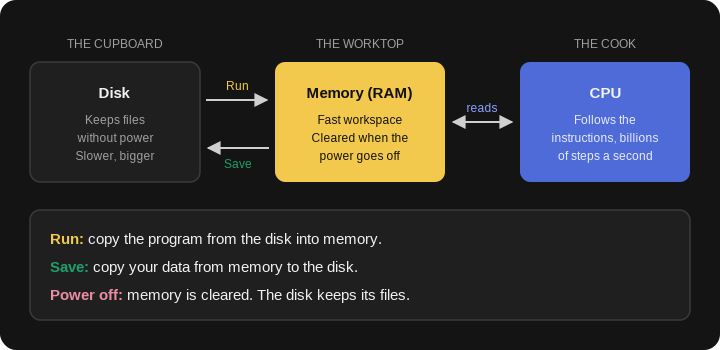
A program that runs is called a process.
Who organizes all this? The operating system. It’s the main program that runs your computer, like Windows, macOS, Android or iOS. It’s like the kitchen manager. It starts processes and gives each one its own space in memory. It also decides which process the CPU works on next.
One program can become many processes. If you start the same game twice, the operating system can make two processes from it. Each process has its own memory. Some apps, like most web browsers, see that they already run. Then they open a new window in the process that they already have.
When a process stops, the operating system clears its space in memory. Everything that the process held is gone.
In short: a process is a running program. The operating system starts it and gives it memory. When the process stops, the operating system clears that memory.
Where the kitchen idea stops working
Here is the whole kitchen in one table:
| In the kitchen | In the computer |
|---|---|
| The cook | The CPU |
| The worktop | Memory (RAM) |
| The cupboard | Disk |
| A recipe | A program |
| Cooking a recipe right now | A process |
| The kitchen manager | The operating system |
The kitchen helps, but it isn’t perfect:
- Memory is cleared instantly. In a real kitchen, food on the worktop stays there if the lights go out. Memory loses everything the moment the power stops.
- The CPU switches between processes very fast. Your computer runs many processes, but the CPU can work on only a few at any moment. So it switches between processes many times every second. It’s so fast that they all seem to run at the same time.
- Each process gets its own locked area. In a kitchen, the cook can take anything on the worktop. In a computer, the operating system stops a process from touching another process’s memory.
In short: memory is cleared instantly, the CPU takes turns between processes very fast, and each process’s memory is kept apart.
How it goes wrong
Your app’s backend is a process too, and it runs on a server. So everything above applies to it.
Problem 1: Data kept only in memory
Here’s a small piece of backend code, the kind that an AI might write for a “like” button:
let likes = 0;

function addLike() {
  likes = likes + 1;
  return likes;
}
In plain English:
- Line 1: make a variable called
likes, and set it to 0. A variable is a named box that holds a value. It lives in the process’s memory. - Lines 2–5: each time someone likes something, add 1 to
likes. Then send back the new number.
It works. You get 50 likes. Then the server restarts.
Now the process starts again from the beginning. Line 1 runs again, and likes is 0 again. Your 50 likes are gone, like the unsaved game.
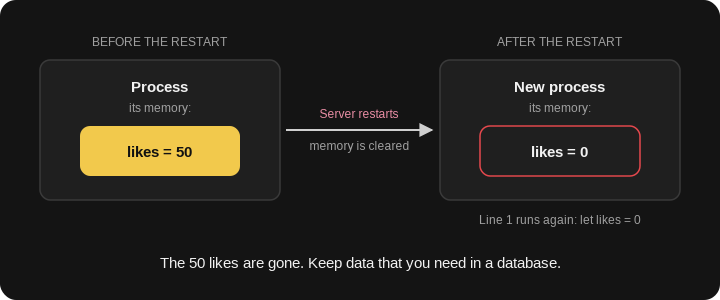
Servers restart more often than you think. They restart when you update your app and when your app crashes (stops because of an error). They also restart when someone updates the server itself. So memory is never a safe place for data that you need later. A database does that job, because it saves data to a disk.
Problem 2: The process stopped
You ask your AI to start your app. It works. Later, you close a window, and now the app won’t load.
Often, the window that you closed ran your app’s process. When you close it, the process stops. Your code is still safe on the disk. But code on a disk doesn’t answer anyone. Only a running process does.
That window is usually a terminal: a window where you type text commands. It works on my laptop. Why can’t my friend open it? explains how to use one.
Problem 3: The computer gets slow
There are two common reasons:
- The CPU is too busy. A process can repeat the same steps forever. It keeps the CPU busy nonstop, and other processes have to wait.
- Memory is full. A process adds things to memory and never removes them. The computer gets slow, and the process can crash.
Go deeper: Your server crashes every few days, like clockwork (Level 4) explains how apps fill up memory, and how to stop it.
In short: memory is cleared when a process stops. An app works only while its process runs. A busy CPU or full memory makes everything slow.
What good looks like
- Keep important data in a database. Use memory only for things that you can lose, like a value that you work with right now.
- Expect restarts. Ask yourself: “If this process restarted now, what would we lose?” The answer must be “nothing important”.
- Know which process is your app. Know which window started it, how to stop it and how to start it again.
- When things get slow, look before you guess. Find which process uses the CPU or memory (see below).
In short: save what matters in a database, plan for restarts, and know where your app’s process runs.
Try it yourself
Experiment 1: See your processes
Every computer has a tool that lists its processes.
- Windows: press Ctrl+Shift+Esc to open Task Manager. The Processes tab is the list.
- Mac: open Activity Monitor. It’s in Applications → Utilities. You can also find it with Spotlight, the Mac’s search tool (Cmd+Space).
Look at the columns:
- CPU: how much of the CPU’s time each process uses now.
- Memory: how much memory each process uses. MB and GB are units of size for data, like grams and kilograms.
Scroll through the list. You’ll find many processes that you never started yourself. The operating system runs many of them in the background, where you don’t see them.
Experiment 2: Watch processes start and stop
- Keep Task Manager or Activity Monitor open.
- Open an app that isn’t open yet, like a calculator.
- Look for its new process in the list.
- Close the app. See its process disappear.
Bonus: look for your browser. Chrome and some other browsers split themselves into many processes. Then, if one website crashes, the whole browser doesn’t stop.
Takeaways
Key terms
- CPU: the chip that follows a program’s instructions, billions of tiny steps per second.
- Memory (RAM): the fast workspace for things in use now. It is cleared when the power goes off.
- Disk (storage): where files are kept, even without power. It is slower than memory, but bigger.
- Program: a file of instructions on the disk.
- Process: a program that runs now.
- Operating system: the main program that runs the computer and manages processes.
Which part is it?
- Data disappeared after a restart → it was only in memory.
- The app stopped answering after you closed a window → its process stopped.
- Everything is slow, and one app shows a high CPU number → the CPU is too busy.
- Everything is slow, and memory is almost full → memory is full.
Ask your AI
- “Does my app keep any important data only in memory, like in a variable? What would be lost if the server restarted?”
- “How do I start and stop my app’s process? Which window is it running in?”
- “My computer is slow while my app runs. How do I check whether it’s using too much CPU or memory?”
Going deeper (optional, for readers who want more detail)
More than one cook. Most CPUs today contain several cores. Each core can follow its own list of instructions. So a CPU with 8 cores can really do 8 things at the same moment. The operating system still switches between processes on each core, because there are usually many more processes than cores.
Clock speed. CPU speed is often shown in GHz (gigahertz). Intel explains that a 3.2 GHz CPU goes through 3.2 billion cycles per second. A cycle is one tick of the CPU’s internal clock. Clock speed alone doesn’t tell you which CPU is faster. CPUs do different amounts of work per cycle.
From your code to CPU instructions. CPUs understand only machine code: instructions written as numbers. JavaScript is changed into machine code while it runs. Node.js is a program that runs JavaScript outside the browser, for example on a server. In Node.js and Chrome, a part called the V8 engine does this change.
When memory is full. Sometimes processes need more memory than the computer has. Then the operating system can move some of the data to the disk for a while. This is called swap or virtual memory. It keeps things running, but the disk is much slower than memory. So everything gets slow.
Processes have ID numbers. The operating system gives each process a number called a PID (process ID). Task Manager and Activity Monitor can show it. In Node.js, a process can read its own PID from process.pid.
Threads. A process can split its work into threads. Threads share the same memory. They take turns on the CPU, or run on different cores. One slow request froze the whole server (Level 4) explains how Node.js handles this.
References (7)
- What Is CPU Clock Speed?: Intel. A 3.2 GHz CPU goes through 3.2 billion cycles per second, and clock speed isn’t the only thing that decides speed.
- Multi-process Architecture: The Chromium Projects. Chrome uses many processes so that a bug in one part doesn’t bring down the whole browser.
- Process Models: The Chromium Projects. How Chrome splits websites into separate processes.
- V8 JavaScript engine: V8. The engine that runs JavaScript in Chrome and Node.js.
- process.pid: Node.js Documentation. A Node.js process can read its own process ID.
- Keyboard shortcuts in Windows: Microsoft Support. Ctrl+Shift+Esc opens Task Manager.
- View information about Mac processes in Activity Monitor: Apple Support. Processes are programs running on a Mac, and Activity Monitor shows how much memory and CPU time each one uses.