Level 1 · Foundations
You pressed Enter. What happened in the next second?
You pressed Enter. What happened in the next second?
Before you start Nothing. This is the very first lesson. If you’ve ever watched a video on YouTube, you’re ready.
One second, a lot of work
Open YouTube. Within about a second, you see a page full of videos.
But here’s a question most people never ask: where was that page before you opened it?
It wasn’t inside your phone or laptop. You didn’t download it earlier. A second ago, it was somewhere else, maybe in another country. Then it traveled to you.
This lesson explains that trip, in simple steps. It matters because one day you’ll build your own website or app, maybe with an AI helping you. When something goes wrong, the error messages will talk about this trip: “server not found”, “request failed”, “404”. Don’t worry if those mean nothing to you yet. By the end of this lesson, they’ll start to make sense.
This lesson gives you the big picture. The next four lessons explain each part in more detail.
Computers can talk to each other
Let’s start with something you already use: Wi-Fi.
At home, your phone, laptop and maybe your TV all connect to the same Wi-Fi. Because they’re connected, they can send messages to each other. That’s how you can send a video from your phone to the TV.
When devices are connected so they can send messages to each other, that’s called a network. (A device is any phone, laptop, tablet or computer.)
Your home Wi-Fi comes from a small box, usually with blinking lights. That box is called a router. It connects all your home devices together.
But your router does one more thing. It connects your home network to your internet company’s network. That network connects to other networks, which connect to more networks, all around the world.
That giant network of networks is the internet. Billions of devices are connected to it. Any one of them can send a message to any other, as long as it knows where to send it.
In short: a network is devices connected so they can send messages. The internet is a huge network of networks that connects the whole world.
Websites live on other computers
So where is YouTube?
YouTube’s pages and videos are stored on computers owned by YouTube. Those computers are kept in huge buildings full of computers, called data centers. Big websites have data centers in many countries.
These computers are different from your laptop. They usually have no screen and no keyboard, and nobody sits in front of them. They have one job:
Wait for someone to ask for something. Then send it.
A computer that does this job is called a server. It serves things to others, like a waiter serves food.
Think of a shop counter. You walk up and ask, “Can I have a bottle of water?” The shopkeeper gets it and hands it to you. You’re the one asking. The shopkeeper is the one who serves. On the internet, the server is the shopkeeper.
The device doing the asking (your phone or laptop) is called the client. Clients ask. Servers answer.
In short: websites are stored on servers, which are computers in data centers. Your device is the client. Clients ask, and servers answer.
The browser: your messenger
You don’t talk to servers yourself. An app does it for you: your browser.
A browser is the app you use to open websites. Chrome, Safari, Firefox and Edge are all browsers.
The browser has three jobs:
- Ask: send your message to the right server.
- Receive: get the server’s answer.
- Show: turn that answer into a page you can see, with text, pictures and buttons.
The answer from the server isn’t a picture of a page. It’s more like a set of instructions. For example: “Put this title at the top. Put this video here.” The browser reads the instructions and builds the page on your screen.
Go deeper: Take a web page apart and see what’s inside (Level 1) shows what these instructions look like.
In short: the browser sends your questions to servers, receives their answers, and builds the page you see.
Asking and answering
Every conversation between your browser and a server follows the same pattern.
- Your browser sends a message that asks for something. This message is called a request.
- The server sends back a message with its answer. This is called a response.
For example:
| Message | |
|---|---|
| Request (from your browser) | “Please send me YouTube’s home page.” |
| Response (from the server) | “Here it is.” (plus the page) |
Or sometimes:
| Message | |
|---|---|
| Request | “Please send me the page called secret-page.” |
| Response | “Sorry, I don’t have a page with that name.” |
This ask-and-answer pattern is the most important idea of the web. Almost everything you do online works this way:
-
Watching a video: a request for the video, a response with the video.
-
Liking a post: a request that says “save this like”, a response that says “done”.
-
Sending a message in a group chat: a request that says “deliver this”, a response that says “delivered”.
In short: your browser sends a request, and the server sends back a response. Almost everything online is requests and responses.
The whole trip, step by step
Now let’s put it all together. Here’s what happens when you type youtube.com into your browser and press Enter:
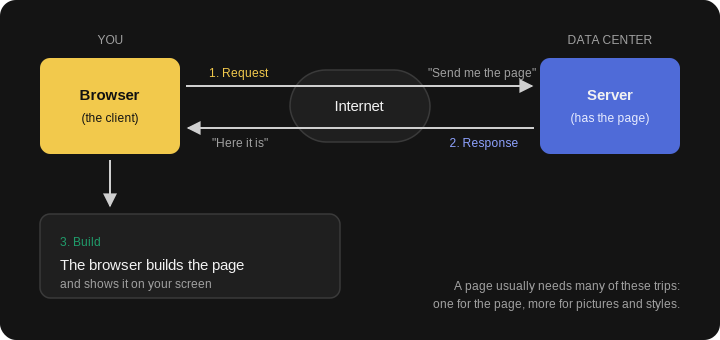
In a bit more detail:
Step 1: You type the address. youtube.com is the website’s address. A web address is called a URL.
Step 2: The browser finds the right server. There are millions of servers on the internet. Your browser has to find out which one has YouTube. It looks this up using the internet’s address book, called DNS.
Go deeper: How does your browser find one computer out of billions? (Level 1) explains how DNS works.
Step 3: The browser sends a request. “Please send me the home page.”
Step 4: The server sends a response. “Here it is”, along with the instructions for building the page.
Step 5: The browser builds the page. It reads the instructions and shows you the videos.
One surprise: a page usually needs many separate requests. One for the page itself. Then one for each picture and each video thumbnail. Then more for the files that describe the page’s design, like its colors and fonts. A typical web page needs around 70 requests. Your browser sends them all very fast, so it feels like one.
In short: you type an address, the browser finds the server, sends a request, gets a response, and builds the page. Usually many times over for one page.
When the trip goes wrong
Each step of the trip can go wrong in its own way. The error message tells you which step broke. Here are two you’ve probably seen:
“No internet” (in Chrome, it comes with a little dinosaur game) The trip failed at the very start. Your device isn’t connected to the internet, so your request never left your device. The server never even heard from you.
“404 Not Found” This one is different. The request did reach the server, and the server did answer. Its answer was: “I don’t have a page at that address.” The trip worked. The page doesn’t exist, maybe because of a typo in the address.
See the difference? In the first case, nothing reached the server. In the second, the server got your request and replied with an error. These need different fixes.
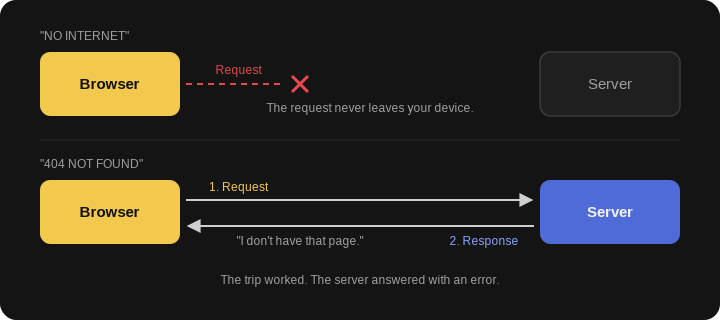
When you build your own app, you’ll see more errors like these. If you can say which step broke, you can fix it much faster. And if you’re building with an AI, you can tell it exactly what’s wrong instead of “it doesn’t work”.
Go deeper: “This site can’t be reached”: what broke, and where? (Level 1) goes through the common errors one by one.
In short: each step fails in its own way. If nothing reached the server, it’s a connection problem. If the server answered with an error, the problem is on the server’s side.
Try it yourself
Experiment 1: Break the trip
- Open any website.
- Turn off Wi-Fi and mobile data.
- Reload the page.
You’ll see an error, because your request can’t leave your device. Turn your connection back on and reload. The trip works again.
Experiment 2: Watch the requests
You need a laptop or desktop computer with Chrome for this one.
Every browser has hidden panels called developer tools. They show what the browser does while it loads a page.
- Open any website, like
wikipedia.org. - Open developer tools: press F12 on Windows, or Cmd+Option+I on Mac.
- Click the Network tab at the top of the panel.
- Reload the page.
Watch the list fill up. Every row is one request your browser sent. At the bottom, you can see how many requests the page needed in total. That’s how many times your browser asked and a server answered to show you one page.
Don’t worry about the other columns yet. Take a web page apart and see what’s inside explains them.
Takeaways
Key terms
| Term | Meaning |
|---|---|
| Network | Devices connected so they can send messages to each other |
| Internet | A giant network of networks that connects the whole world |
| Server | A computer that waits for requests and answers them |
| Data center | A building full of servers |
| Client | The device that asks, like your phone or laptop |
| Browser | The app that sends requests and shows you the answers as pages |
| Request | A message that asks a server for something |
| Response | The answer from the server |
The trip in one line
You type an address → the browser finds the server → sends a request → gets a response → builds the page.
Ask your AI
Try these with any AI chat tool to practice:
-
“Explain what happens step by step when I open youtube.com, in simple words.”
-
“I see this error: [paste it]. Did my request reach the server, or did it fail before that?”
Going deeper (optional, for curious readers)
Messages travel in small pieces. Big messages, like a video, aren’t sent all at once. They’re cut into many small pieces called packets. Each packet travels across the internet on its own, possibly by a different route, and your device puts them back together in the right order.
The internet has cables under the sea. Wi-Fi only covers the last few meters to your device. Most of the internet runs through cables, and most data between continents travels through cables laid on the ocean floor.
Big websites keep copies close to you. Popular websites store copies of their pages and videos on servers in many countries. When you open them, you usually get the copy from a server near you. That is faster than a server on the other side of the world.
Any computer can be a server. A server isn’t a special kind of machine. It’s any computer running a program that answers requests. When you build an app, your own laptop will act as a server while you test it. It works on my laptop. Why can’t my friend open it? explains this.
References (8)
- Page Weight, Web Almanac 2024: HTTP Archive. The median page makes 71 requests on desktop and 66 on mobile.
- How the web works: MDN Web Docs. Clients and servers, DNS as an address book, requests and responses, and data sent in packets.
- 404 Not Found: MDN Web Docs. What a 404 response means: the server was reached but has nothing at that address.
- error_page_strings.grdp: Chromium source code. Chrome’s “No internet” error page and its dinosaur game.
- Open Chrome DevTools: Chrome for Developers. The F12 and Cmd+Option+I shortcuts.
- Inspect network activity: Chrome for Developers. Using the Network panel to see every request a page makes.
- Submarine Cable FAQs: TeleGeography. Satellites carry only a very small share of international data, and cables carry far more data than satellites.
- CDN: MDN Web Docs. Big websites keep copies of their data on servers in many places and answer from the one closest to you.